A Desktop Calculator for Household Numbers: Display, Keys, and Power
Product links are for reference. Verify current details on the retailer page before buying.
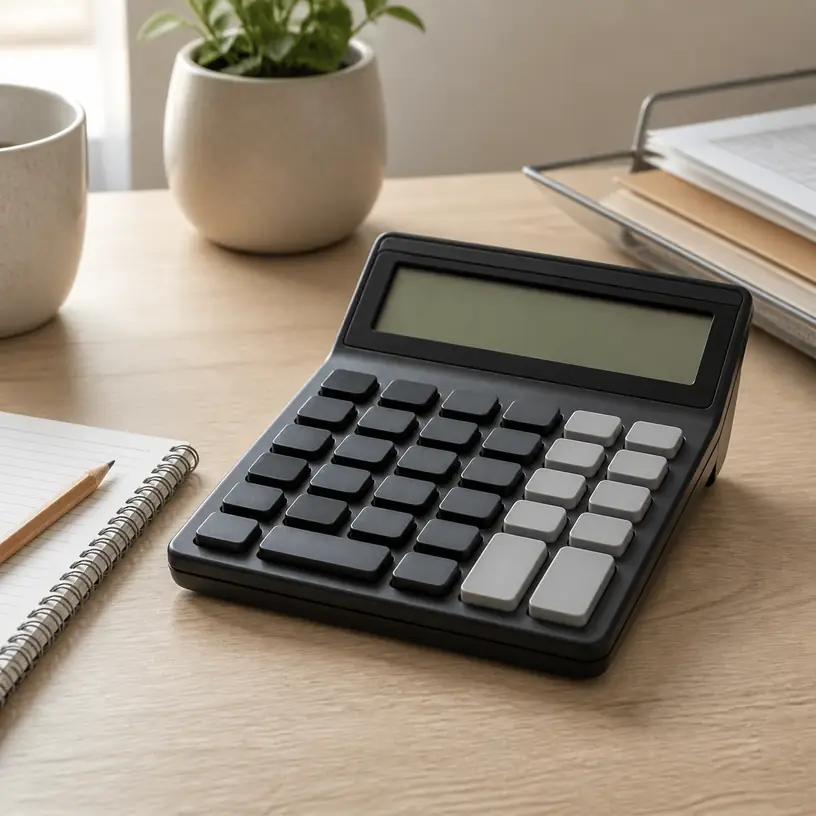
Illustrative image, not an official product photo.
Short answer
A desktop calculator earns its space when you can read it at your normal sitting angle, enter figures without watching every keystroke, and recognize each function without decoding a crowded keypad. For household bills, expense logs, order totals, and tax-preparation notes, compare display size and tilt, key spacing, digit capacity, decimal controls, memory behavior, power source, and the calculator’s complete footprint. More functions are not necessarily helpful: a clear arithmetic layout with the few operations you actually use can be faster than a busy model. Check whether an angled display will remain legible under your desk lighting and whether dual-power wording includes a replaceable battery or only supplemental light-powered operation.
Search reference
Desktop calculators for home-office paperwork
Compare display angles, keypad layouts, digit limits, power arrangements, dimensions, and instructions for the calculations you repeat.
View matching optionsLet the paperwork define the keypad
Start with the calculations that currently send you to a phone or computer. A monthly household budget may need addition, subtraction, percentages, tax-style adjustments, and a running memory. Reconciling receipts can benefit from a double-zero key, while schoolwork may require functions that an ordinary business calculator does not provide. Write down the operations instead of assuming that a large key count is better.
Layout matters because the same label can appear in different positions across calculators. People who enter long columns by touch often develop habits around zero, decimal, plus, and total keys. Moving between a computer number pad and a calculator can also expose differences in key order. Study a straight-on keypad image and check the manual for unfamiliar symbols before buying. A dedicated backspace or correction key can save a whole entry, but its behavior should be confirmed rather than guessed from an arrow icon.
Key shape changes the experience as much as key size. Wide gaps can help isolate each press, while tall, sculpted caps may guide a fingertip toward the center. Completely flat keys make the surface compact but can be harder to distinguish without looking. If several people will share the calculator, favor labels with strong contrast and conventional terms over niche shortcuts that only one person understands.
Who this is for
- Households totaling receipts, comparing monthly expenses, checking invoice arithmetic, or planning a simple budget on paper.
- Home-office users who want a number-entry tool that remains available without opening an app or switching computer windows.
- Small workspaces where a basic calculator can sit beside a notebook, printer, or filing tray without occupying the main keyboard area.
- People who prefer physical keys and an always-visible result for short arithmetic sequences.
- Shared desks that benefit from a straightforward layout and no individual account, setup, or saved document.
Who should skip it
- Use a spreadsheet when calculations need named categories, formulas across many rows, revisions, charts, or a permanent audit trail.
- Choose a scientific, graphing, financial, construction, or printing calculator when a course or profession names specific functions and conventions.
- A handheld model may suit a mobile kit better when every inch of desk depth matters.
- A phone or computer may be sufficient if arithmetic is rare and adding another battery-powered object would create clutter.
- Do not rely on a basic desk calculator to preserve important records; copy and verify results in the document where they belong.
What to verify before buying
- Display: Check the digit count, character height, contrast, viewing angle, and whether tilt is fixed or adjustable.
- Desk lighting: Confirm how the display behaves in dim rooms, bright window light, and reflections from overhead fixtures.
- Key map: Locate zero, decimal, arithmetic, percent, memory, clear, correction, and any double-zero or tax keys you expect to use.
- Decimal behavior: Read how floating and fixed decimal positions, rounding, and add-mode switches operate, if supplied.
- Entry feedback: Look for stated key style and rollover behavior; do not assume rapid presses will always register in sequence.
- Digit capacity: Choose enough positions for your realistic totals while remembering that separators and decimals affect readability.
- Power arrangement: Identify the battery type, battery access, automatic shutoff, and the exact role of any solar cell.
- Dimensions: Compare width, depth, display height, and storage clearance rather than judging scale from a close product image.
- Instructions and support: Check whether a readable manual explains memory, percentage, tax, rounding, and error messages.
- Package contents: Verify whether a battery is installed or included and whether any protective tab must be removed before use.
Read the display from your chair, not from above
A product image photographed directly over the keys says little about real viewing. At a desk, your eyes may be above and behind the keypad, and the display may sit below a lamp or face a bright window. Fixed-angle displays are simple and sturdy, but their usefulness depends on chair height and placement. An adjustable panel offers another way to manage reflections, although it adds a hinge whose permitted range and long-term support are product-specific.
Digit capacity deserves a practical check. A display with many positions can hold larger totals, yet squeezing more characters into a similarly sized window may reduce character width. Comma separators, decimal points, minus signs, memory indicators, and error symbols should remain distinguishable at a glance. If a household member uses reading glasses or has difficulty with low contrast, character height and background contrast are more informative than a vague “large display” claim.
Think about the desk surface too. A dark calculator on a dark desk can make the body edges less visible, and glossy plastic can reflect a lamp. Rubber feet may reduce sliding when they are clean and in full contact, but a very light calculator can still move under energetic key presses. Measure the available area with room for your wrist; the listed dimensions should include the raised display, not just the flat keypad section.
Understand memory, percent, and decimal controls before using the result
Basic arithmetic keys are familiar, but percentage operations are not implemented identically across every sequence or calculator category. A percent key may calculate a percentage of a number, add a markup, or behave according to the preceding operation. Tax keys can store a rate and then apply it through dedicated buttons. Read the model’s examples and test simple figures whose answer you already know before relying on these shortcuts for paperwork.
Memory controls are useful for keeping a subtotal while another figure is calculated. Common labels include memory plus, memory minus, recall, and clear, sometimes combined on one key. The display may show an indicator while a value is stored, but memory retention after automatic shutoff, a manual clear, or battery removal varies. Important figures still need to be written down in the relevant worksheet or file.
A side or rear switch may select floating decimals, a fixed number of decimal places, rounding direction, or an adding-machine style mode. Those settings can silently change how results appear. Check the switch position if a familiar calculation suddenly looks rounded or scaled unexpectedly. For money-related records, decide on the rounding method required by the document or organization rather than assuming the calculator’s default is appropriate.
Error handling is another useful manual check. An overflow result, division by zero, or excessively long entry may trigger an error symbol and require a specific clear sequence. Practice clearing an entry and clearing the complete calculation. A key labeled C, CE, AC, or a combined variant may not erase the same amount of work.
Power claims need a closer reading
A solar panel on the front does not necessarily mean the calculator operates indefinitely without a battery. Many desktop models combine a light-powered cell with a battery, using one or both depending on conditions. The listing or manual should identify the battery chemistry and size, whether it can be replaced, and any lighting requirements. “Dual power” alone does not answer those questions.
Automatic shutoff helps conserve battery life, but the delay and the treatment of memory or settings should be confirmed. If the calculator sleeps midway through transcribing a long statement, check what remains when it wakes. Never open a sealed compartment or attempt a battery replacement that the instructions do not support.
Store the calculator away from spills, heat, and prolonged direct sun unless the maker specifies otherwise. Light-powered operation does not require baking the device on a windowsill. Clean the display and key gaps according to the instructions, without spraying liquid into the keypad. Remove and dispose of a depleted or leaking battery using applicable guidance, and keep loose button cells away from children and pets.
Limitations
- A desktop calculator shows an answer but does not automatically preserve the reasoning, categories, or source figures behind it.
- “Large display” and “large keys” are relative descriptions; listed measurements and layout images provide better comparisons.
- Fast entry can expose missed or doubled keystrokes, especially when key feel and rollover behavior are not documented.
- Percent, tax, rounding, and memory functions may behave differently from another calculator you already know.
- Fixed display angles can be difficult to read under glare or from an unusually high or low chair position.
- Light-powered performance depends on the design and environment; the battery arrangement still requires verification.
- A basic calculator is not a substitute for specialist functions, recordkeeping software, or a second check on consequential figures.
Alternatives to compare
- A pocket calculator when drawer space, portability, or a small travel kit matters more than key size.
- A computer spreadsheet for repeatable formulas, categorized budgets, what-if changes, and a saved calculation history.
- A phone calculator app for occasional arithmetic when carrying another device would add unnecessary clutter.
- A printing calculator when a paper tape is useful and its noise, supplies, and larger footprint fit the workspace.
- A scientific or financial calculator when a class, exam, trade, or financial method requires named functions beyond household arithmetic.
- An external numeric keypad for entering many figures directly into accounting software or a spreadsheet.
FAQ
How many digits should a desktop calculator display?
Choose enough positions for the largest totals you realistically enter, then compare the actual character size and separators. More digits are useful only if the complete number remains legible and you understand how the calculator signals overflow or rounding.
Is a solar desktop calculator battery-free?
Not necessarily. Many light-powered calculators also contain a battery, and “dual power” can describe different arrangements. Check the current specifications or manual for the battery type, replacement instructions, lighting needs, and automatic-shutoff behavior.
What is the difference between C, CE, and AC keys?
Their exact behavior is model-specific. One may clear only the latest entry, while another clears the current operation or a broader calculation state. Use the manual’s examples and practice with simple numbers before entering a long column.
Do I need tax and percent keys for household budgeting?
They can reduce keystrokes for repeated calculations, but only after you understand the sequence and any stored rate. Ordinary arithmetic is sufficient for many budgets, while a spreadsheet is safer when formulas and assumptions need to remain visible.
Will an angled display always reduce glare?
No. Readability depends on the panel angle, chair height, desk position, window direction, and lighting. An adjustable display offers more positioning options, but the useful range and stability should still be checked.