Webcam Privacy Covers: Check the Clearance Before You Close the Laptop
Product links are for reference. Verify current details on the retailer page before buying.
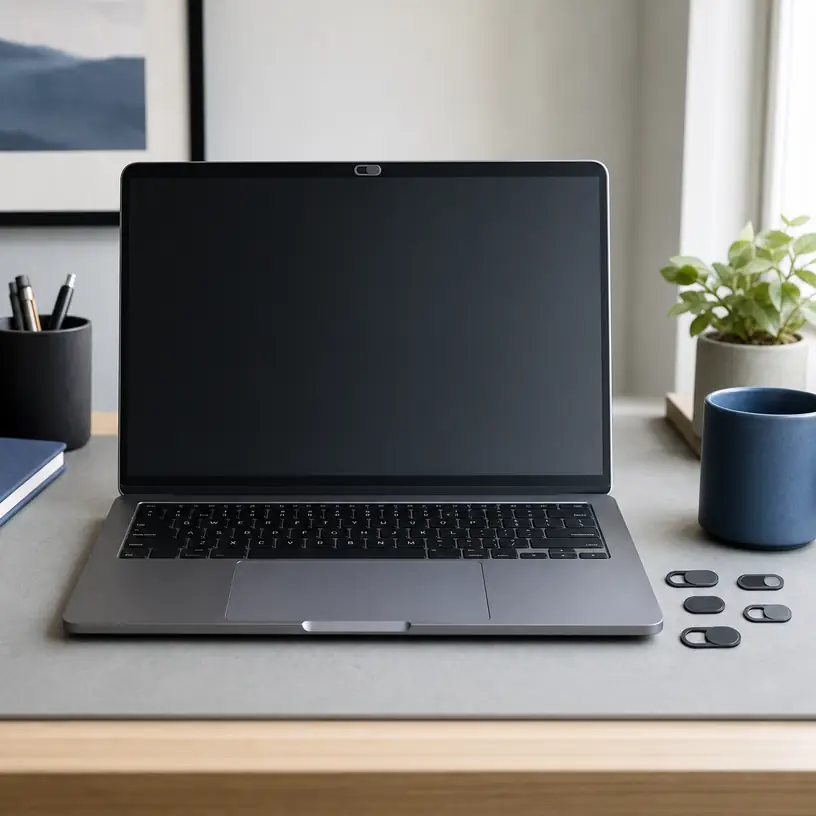
Illustrative image, not an official product photo.
Short answer
A sliding webcam cover can provide a visible physical barrier over a conventional camera, but the tiny accessory must suit the device around it. Before attaching one, check the computer maker’s guidance, the gap between the closed display and keyboard, and the positions of the camera, indicator light, microphones, and face-recognition sensors. The cover should reveal the full lens when open, stay clear of neighboring components, and add no more thickness than the device can safely tolerate. On laptops with very tight lid clearance, a removable cover or the manufacturer’s built-in shutter may be the more sensible choice.
Search reference
Laptop webcam privacy cover options
Compare current dimensions, stated thickness, opening size, adhesive layout, device guidance, and pack contents against the camera area on your own computer.
View matching optionsThe smallest measurement may be the most important one
Webcam privacy covers look simple: a thin frame sticks around the camera while a small tab slides across the lens. That simplicity is useful only when the frame fits the exact space available. Modern laptop bezels can be narrow, and the camera area may also hold microphones, an activity light, ambient-light hardware, or infrared components used for face recognition. A cover chosen by appearance alone can block something it was never meant to cover.
Closed-lid clearance deserves equal attention. Some laptops are designed with very little space between the display glass and the opposite surface. Adding an accessory near the top edge may create a pressure point when the lid is shut or when the computer is carried in a packed bag. A listing that calls a cover “thin” does not establish compatibility with every laptop. Measure when dimensions are available, but also consult current device-maker guidance before applying anything to the display assembly.
A physical cover has a deliberately limited job. It can block the camera’s view when placed correctly and closed. It does not manage microphone access, remove software permissions, secure an account, or replace operating-system updates. Treat it as one visible control rather than a complete privacy solution.
Who this is for
- Desktop monitor users whose conventional webcam has no built-in shutter and has enough flat bezel space for a small adhesive frame.
- Laptop owners whose device documentation permits a cover and whose closed-lid clearance can accommodate the verified thickness.
- Shared-workspace users who want an easy visual check that the camera lens is covered between video calls.
- People managing several compatible computers who can use a multipack after measuring each camera area separately.
- Users who prefer a slider that stays attached, provided it opens fully and does not interfere with sensors or indicators.
Who should skip it
- Skip an adhesive cover when the laptop maker advises against adding material near the camera or display.
- Do not attach one if the lid closes with almost no gap or the cover could press against the screen, keyboard deck, or palm rest.
- Avoid covering infrared emitters, depth sensors, microphones, ambient-light sensors, or the camera activity light.
- Choose another approach for a tablet, phone, glass-front display, or unusually shaped camera module unless the accessory is explicitly suitable and safely placed.
- Do not rely on a camera cover as a substitute for microphone controls, app-permission review, security updates, or account protection.
What to verify before buying
- Find the camera lens and identify every nearby opening or sensor using the device manual or current support information.
- Measure the available flat bezel area, then compare the cover’s complete outer width and height—not only the slider opening.
- Check the stated thickness against manufacturer guidance and the actual clearance when the laptop lid closes.
- Confirm that the open slider exposes the complete camera field rather than leaving a dark edge in video calls.
- Look at the adhesive shape and make sure it surrounds the intended lens without sitting on an opening, curved edge, or display pixels.
- Verify whether the cover is intended for laptops, monitors, external webcams, tablets, or another surface; these are not automatically interchangeable.
- Check how the slider is operated and whether the tab is large enough to move without pressing hard on the display.
- Review removal instructions before installation, especially for coated glass, delicate bezels, work-issued devices, or equipment you may return.
Map the camera area before peeling the backing
Start with the computer turned off and the camera area clean enough to inspect. A phone flashlight aimed from the side can help reveal small openings, but the device’s support diagram is a better reference for identifying their purpose. The visible camera lens may not be the only imaging component. Systems that support face recognition can use additional infrared hardware, and some camera lights sit very close to the lens.
Use the published outer dimensions of a prospective cover to make a simple paper outline. Hold that outline near the bezel without adhesive. This dry fit makes conflicts easier to notice: a frame that overlaps the active display, a slider that opens toward a microphone, or a body that sits partly on a curved lip. Also check whether the laptop has a built-in mechanical shutter that the add-on would obstruct. If the device already provides a shutter, using the integrated control avoids adding thickness.
Once a cover is attached, test the camera with the slider fully open. Look for shadowing, blur, or a cropped edge, and confirm that any face-recognition feature you intend to use still operates as expected. Check the activity indicator rather than hiding it. If opening the slider requires pushing against the panel, the mechanism is not a comfortable match for that device.
Think about the laptop when it is closed
The top bezel does not exist in isolation. Closing a laptop brings it near the keyboard, palm rest, or another part of the chassis. Even a small raised object can concentrate force, especially when the device is carried under books or squeezed inside an overfilled backpack. That is why external dimensions and thickness are buying criteria rather than minor details.
Do not test clearance by snapping the lid shut over a newly installed cover. Lower it slowly without pressure and stop if it meets resistance or leaves an unusual gap. Follow the device manufacturer’s instructions if they are more restrictive. A computer issued by an employer or school may also have an equipment policy that rules out adhesive accessories.
A cover that is acceptable on a thick desktop monitor bezel may be unsuitable for a thin notebook. Conversely, an ultra-small laptop cover may have an opening too narrow for a separate USB webcam. Buy for the measured host device, not for the generic product label.
Slider design and adhesive both affect daily use
An open webcam cover should remain open during a call instead of drifting partly across the lens. When closed, it should cover the lens without requiring a forceful push. Very small tabs keep the profile low but may be awkward for people with limited dexterity or long fingernails. A larger tab can be easier to move, although it may need more bezel room.
Adhesive keeps the frame aligned, but stronger is not automatically better. The mounting area may have a coating, texture, curve, or narrow border that gives the adhesive little contact. Residue and finish damage are possible during removal. Clean only as the device maker recommends; household solvents can harm display coatings and plastic finishes.
Multipacks are useful when the same measurements work across several devices, but do not assume every screen in a household has the same layout. Fit each computer independently. Keep unused covers on their backing until needed, and avoid trying to reposition a frame if the adhesive is designed for one application.
Limitations
- A closed cover blocks a correctly aligned camera lens, but it does not block microphones or control software permissions.
- Added thickness can be inappropriate for laptops with tight display-to-keyboard tolerances and may create a pressure point when closed.
- Nearby sensors, lights, and microphones vary by device, so a cover that fits one computer may interfere with another.
- Adhesive can leave residue, lose grip, or affect a delicate surface during removal.
- A narrow slider opening may vignette the camera image even when the cover appears open.
- Device designs and manufacturer instructions change; current compatibility information should take priority over generic package claims.
Alternatives to compare
- A built-in mechanical shutter, if the laptop, monitor, or external webcam already includes one.
- A removable non-adhesive camera cover that is taken off before the laptop lid is closed.
- A small piece of low-residue material used only when permitted, removed before closing, and kept clear of sensors and the activity light.
- Operating-system camera permissions and per-app controls for deciding which software can request camera access.
- An external webcam with an integrated shutter, combined with disabling or managing the internal camera according to device guidance.
FAQ
Can a webcam cover damage a laptop screen?
It may create a risk if it is thicker than the clearance designed into the closed laptop or if pressure is applied while the device is carried. Check the computer maker’s current guidance and do not install a cover where the lid cannot close normally without contact.
How do I know whether a cover will block face recognition?
Identify the camera, infrared components, and other sensors from the device documentation, then compare their positions with the full outer shape of the cover. If the frame or slider overlaps required hardware, choose another method rather than guessing.
Should the webcam activity light remain visible?
Yes. A cover should not hide indicators or neighboring openings. Keeping the activity light visible preserves an important status cue, while the physical slider provides a separate visual cue.
Can I use the same webcam cover on a desktop monitor and a laptop?
Only if its outer dimensions, opening, adhesive surface, and thickness are suitable for each device. Desktop bezels and laptop lid clearances differ, so compatibility should be checked separately.
Does a webcam cover stop microphone access?
No. A camera cover does not block or manage microphones. Review microphone permissions and hardware controls separately, and keep microphone openings clear rather than covering them accidentally.