Laptop Privacy Screen Filters: Measure the Display Before You Order

Product links are for reference. Verify current details on the retailer page before buying.

Illustrative image of a generic laptop and a removable privacy screen filter in a shared workspace

Illustrative image, not an official product photo.

Short answer

A privacy filter should be chosen for the laptop’s visible display area and aspect ratio, not for the computer’s overall width or its marketing name alone. Measure the illuminated rectangle without counting the bezel, then compare both dimensions with the filter maker’s fit chart. Decide whether the screen needs to stay attached every day or come off for color-sensitive work: slide tabs support repeat removal, while adhesive or magnetic systems have different bezel and lid-clearance requirements. Expect a narrower side-viewing zone and some change in brightness or appearance, but do not treat the accessory as protection against someone standing directly behind you, cameras, malware, or exposed information left on screen.

Search reference

Compare laptop privacy screen filters

Match the visible display dimensions and aspect ratio first, then compare mounting style, removability, finish, touch compatibility, and lid clearance.

View matching options

The diagonal number is only a starting point

Two laptops can share a stated diagonal size and still use screens with different proportions. A filter made for a wider 16:9 display will not neatly cover a taller 16:10 panel at the same diagonal. Rounded display corners, edge-to-edge glass, a raised bezel, a camera notch, and sensors near the top border can complicate the match further.

Open the laptop and measure the width and height of the active display—the part that shows an image. Keep those numbers separate from the outer lid and bezel measurements. Record the model identifier if it is available, but use a compatibility list only when the listing clearly distinguishes variants and production years. A broad claim such as “fits 14-inch laptops” is not enough to resolve differences in aspect ratio or bezel layout.

Product dimensions can also be ambiguous. Some listings describe the filter panel itself; others emphasize the compatible screen diagonal or include tabs in an overall measurement. Look for a diagram that identifies what was measured. If the filter is designed to sit inside a raised bezel, its exact panel dimensions matter. A magnetic frame that overlaps the border may use a different sizing method.

Who this is for

  • Commuters who sometimes work with ordinary documents in shared seating areas.
  • Students moving between libraries, classrooms, and other side-by-side workspaces.
  • Hybrid workers who want an extra visual barrier when a private desk is unavailable.
  • Laptop owners who can verify their active display dimensions and select a compatible mounting system.
  • People who prefer a removable filter for travel and can store it flat between uses.

Who should skip it

  • Skip a privacy filter if accurate color, wide-angle collaboration, or maximum display brightness is more important during most sessions.
  • Choose better seating or a more private location when people can stand directly behind the screen.
  • Do not rely on a filter as a substitute for screen locking, account security, careful document handling, or workplace privacy procedures.
  • Avoid an adhesive mount if the laptop maker’s care guidance restricts attaching materials to the bezel or glass.
  • A generic filter is a poor gamble when the listing provides no dimensions, aspect ratio, or mounting-clearance information.

Pick an attachment method for the way the laptop travels

Slide tabs are small guides placed around the display border. The filter slips into them and can be removed when several people need to see the screen. Check the number and position of the tabs, whether their adhesive contacts glass or bezel, and whether the panel can slide out without striking a camera bump. Tabs that project above the surface can also affect how fully a thin laptop closes.

Adhesive strips or dots hold the filter directly against the display area or surrounding border. They create fewer loose parts, but alignment and residue handling deserve attention. Verify whether the attachment is described as reusable, where it is intended to contact the laptop, and how it should be removed. Do not substitute household tape or solvent-based cleaning for the provided instructions.

Magnetic frames can make removal convenient when the computer has a compatible flat border. Magnets do not make a filter universal: frame width, sensor placement, webcam clearance, and the gap between keyboard and display when closed still matter. Confirm that the exact laptop is supported and that the computer maker does not prohibit the arrangement.

Some products offer more than one mounting option in the package. That flexibility is useful only when the included pieces suit the display construction. Count what is supplied and check whether replacement tabs or strips are available if the filter will move frequently.

What to verify before buying

  • Active display width and height: Measure the visible image area and compare both dimensions, not only the diagonal label.
  • Aspect ratio: Confirm whether the laptop uses 16:9, 16:10, 3:2, or another proportion and match the filter accordingly.
  • Bezel and corner shape: Note raised edges, curved corners, edge-to-edge glass, notches, cameras, light sensors, and infrared components.
  • Mounting method: Check where tabs, adhesive, or a magnetic frame will touch and how the filter is removed.
  • Closing clearance: Determine whether the laptop can close as intended with the complete attachment system installed.
  • Privacy direction: Verify whether the narrowing applies primarily from the left and right or is described for additional directions.
  • Intended viewing range: Review the maker’s angle guidance while remembering that real results depend on positioning and display settings.
  • Surface finish: Compare matte and glossy sides, if reversible, for reflections, texture, and the work you normally do.
  • Touch and pen use: Confirm explicit compatibility with the exact touchscreen or pen workflow rather than assuming any thin panel will work.
  • Care and storage: Check the approved cleaning method and whether a rigid sleeve or other flat storage is included.

Privacy has a direction and a seating geometry

Most laptop filters are intended to reduce readability from off-center side positions while leaving a usable view for the person facing the display. That means seating arrangement matters. A person directly behind your chair may have a view close to the same central axis, and someone looking from above may not be affected in the same way as a person beside you. Read how the particular filter describes its directions instead of assuming all-around coverage.

The user also has to remain near the intended centerline. If the laptop sits far to one side, is rotated toward a colleague, or is used with a very low seat, the owner may encounter the same darkening that is meant for neighboring viewers. Before opening sensitive material, arrange the chair and display, look at the surroundings, and apply the organization’s privacy rules. A filter is a supplemental visual control, not permission to ignore the room.

When collaboration starts, removal may be simpler than increasing brightness or asking everyone to crowd into the center. This is where a repeatable mounting system and safe storage become valuable. If the panel will come off several times a day, compare the complete removal routine rather than just the filter thickness.

Expect a visual tradeoff

Filtering off-axis light can change the on-axis experience too. The screen may appear dimmer, reflections may shift, and fine detail can look different through an added surface. Raising display brightness can affect battery runtime, so test a newly arrived filter under the lighting conditions and power settings you actually use. Product wording cannot guarantee the same result across every panel type and room.

A matte face can soften reflections in some settings but may introduce visible texture or reduce perceived crispness. A glossy face may preserve a different look while showing more direct reflections. Reversible designs let you compare the two, provided the product is truly intended to be mounted either way. People editing photos, preparing print colors, or sharing detailed visual work may prefer to remove the filter during those tasks.

Blue-light or glare wording should not be confused with side-view privacy, and a privacy filter should not be treated as medical eye protection. Choose it for its stated visual function, arrange sensible ambient lighting, and follow qualified guidance for any vision or comfort concerns.

Installation and daily handling

Clean the display only with methods approved by the laptop and filter makers, and let every surface dry before attachment. Lay out the parts first, identify the intended face, and test alignment without pressing permanent adhesive. The panel should cover the active area without blocking the camera, microphones, indicators, or sensors identified in the computer documentation.

After installation, close the laptop slowly the first time. Stop if the filter, frame, or tabs meet the keyboard deck or create resistance. Thin modern lids are not designed to have an arbitrary object compressed between their surfaces. If the instructions call for removal before closing or transport, make that part of the routine.

A removed filter should be held by its edges and stored flat. Sliding it loose beside cables, pens, or a power adapter can scratch or bend the surface. Keep any cleaning cloth free of grit, and follow the filter’s instructions for fingerprints rather than using an unapproved spray.

Limitations

  • A side-view filter does not reliably hide the display from a person directly behind the user.
  • Fit labels based only on diagonal size can be misleading when aspect ratios and bezel designs differ.
  • The panel can reduce apparent brightness or alter contrast, reflections, sharpness, and color perception.
  • Tabs, frames, and adhesive can interfere with sensors or safe lid closure when poorly matched or installed.
  • Touch and pen response may change, even when a product is marketed for touchscreen use.
  • The filter does not secure accounts, prevent screen capture, stop malware, or replace careful handling of confidential information.

Alternatives to compare

A better seat or privacy-aware desk position: A wall behind the user and fewer passing sight lines can address angles a side-view filter does not cover.

A monitor hood or workspace partition: Useful at a fixed desk when controlling surrounding light or neighboring sight lines matters more than portability.

A removable magnetic filter made for the exact laptop: Worth comparing when frequent collaboration makes fast removal important, but compatibility and closure clearance remain essential.

A portable monitor used only in private spaces: This separates collaborative and sensitive workflows, although it adds power, cable, storage, and placement requirements.

Software and operating habits: Automatic screen locking, limited notification previews, careful window placement, and approved access controls solve different exposure risks that a physical filter cannot.

FAQ

Do I measure the laptop lid or the visible screen for a privacy filter?

Measure the active image area—the illuminated rectangle—unless the filter maker explicitly requests a different measurement. Record its width and height and compare the aspect ratio. The outer lid and bezel can still matter for attachment, but they should not replace active-area measurements.

Will any 14-inch privacy screen fit a 14-inch laptop?

No. A diagonal label can cover displays with different aspect ratios, active-area dimensions, corners, bezels, cameras, and sensors. Use a dimensioned fit chart or an exact, clearly identified laptop compatibility listing.

Can I close my laptop with the privacy filter attached?

Only when the filter and laptop instructions allow it and there is adequate clearance for the panel, tabs, strips, or frame. Close the lid slowly after installation and stop if anything creates resistance. Some systems are intended to be removed first.

Does a laptop privacy filter work against someone standing behind me?

Not necessarily. Many filters primarily narrow the readable view from the left and right. A person close to the user’s central viewing axis may still see the display, so seating position and normal information-security practices remain important.

Are privacy filters suitable for photo or design work?

They can change brightness, reflections, sharpness, contrast, or color appearance. For work that depends on accurate visual judgment, a removable filter may be more practical so it can be taken off in an appropriately private workspace.

Will a privacy screen filter still work with touch input?

Some are designed for touchscreens, but compatibility and feel vary with the display, attachment, and panel construction. Confirm the exact product’s touchscreen and pen guidance, then test the full screen and closing clearance after installation.
Wireless Game Controllers: Who They Fit and What to Check Before Buying

Product links are for reference. Verify current details on the retailer page before buying.

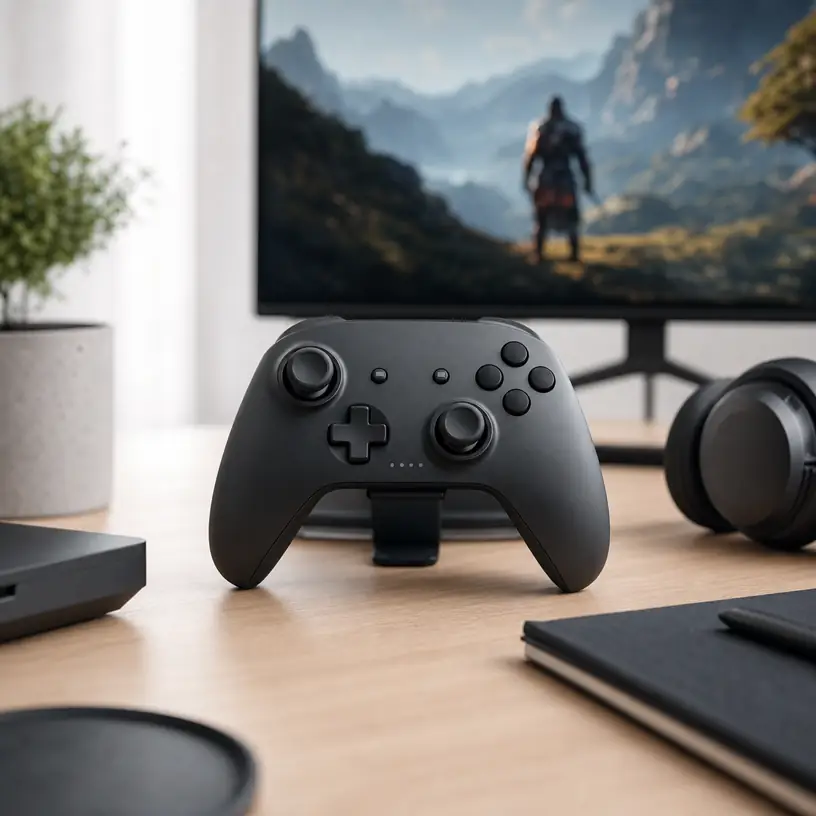
Illustrative image for a wireless game controllers buying guide

Illustrative image, not an official product photo.

Short answer

Wireless game controllers fit players who want a couch-friendly or desk-friendly input device without relying only on a keyboard and mouse. Compare platform support, connection modes, battery setup, button layout, stick and trigger wording, grip shape, and software requirements before buying.

Search reference

Wireless game controller options

Compare current options and verify details on the retailer page before buying.

View matching options

What this product type is

Wireless game controllers are input devices for PC, console, mobile, or handheld-style gaming depending on the model. Current listings vary by supported platforms, wireless adapter type, wired fallback, battery design, button layout, trigger style, vibration wording, app support, and firmware update process. Platform compatibility is the first thing to confirm.
This guide treats the seed listing as a category signal only. Compare current matching options and verify details on the retailer page before buying.

Who this is for

  • PC or console players who prefer controller input for certain games.
  • Buyers replacing a worn controller with drifting sticks or weak buttons.
  • Living-room setups where a cable is inconvenient.
  • Families who need an extra controller for shared play.

Who should skip it

  • Skip this type if your games work better with keyboard and mouse.
  • Choose an officially licensed controller if platform certification is required for your setup.
  • Avoid unclear listings when platform support, battery type, or adapter requirements are not visible.

What to verify before buying

  • Check supported platforms and whether your device is listed.
  • Verify wireless mode, adapter needs, Bluetooth wording, and wired fallback.
  • Review battery type, charging port, and expected charging routine.
  • Check stick, trigger, button, vibration, and remapping wording.
  • Confirm size, grip shape, and whether software or firmware updates are needed.
  • Review current seller information, warranty terms, and return policy.

Main buying notes

Compatibility is not universal. A controller can work well on one platform and need extra steps on another, so verify the current listing and your device requirements.
Battery setup changes ownership. Built-in rechargeable batteries, replaceable batteries, and wired use each have different trade-offs.
Button layout matters if you play fast games or switch between systems. Compare labels, stick placement, trigger shape, and remapping support before deciding.
Wireless convenience can depend on distance, adapter placement, and interference. Keep a wired fallback in mind if reliability is critical.

Limitations

  • Some games may not support controller input cleanly.
  • Wireless performance can vary by adapter, device, and room setup.
  • Software features may require an app or firmware update.
  • Grip comfort and button feel are personal and hard to confirm from images alone.

Alternatives to compare

  • Wired controllers for lower setup complexity.
  • Official platform controllers when certification matters.
  • Keyboard and mouse for competitive PC control.
  • Mobile controller grips for phone-focused play.

FAQ

What should I verify before buying a wireless game controller?

Verify platform support, connection mode, adapter needs, battery setup, button layout, software requirements, warranty terms, and return policy.

Will one wireless game controller work with every platform?

Do not assume that. Check the current listing and your device requirements before buying.

Is wired fallback useful on a wireless controller?

Yes, it can help when charging, pairing, or connection reliability becomes inconvenient.

How should I compare controller battery setups?

Check whether the controller uses a built-in battery, replaceable batteries, or wired power, then choose the routine you prefer.

What alternatives should I compare with wireless game controllers?

Compare wired controllers, official platform controllers, keyboard and mouse setups, and mobile controller grips.

Laptop Cooling Pads: Who They Fit and What to Check Before Buying

Product links are for reference. Verify current details on the retailer page before buying.

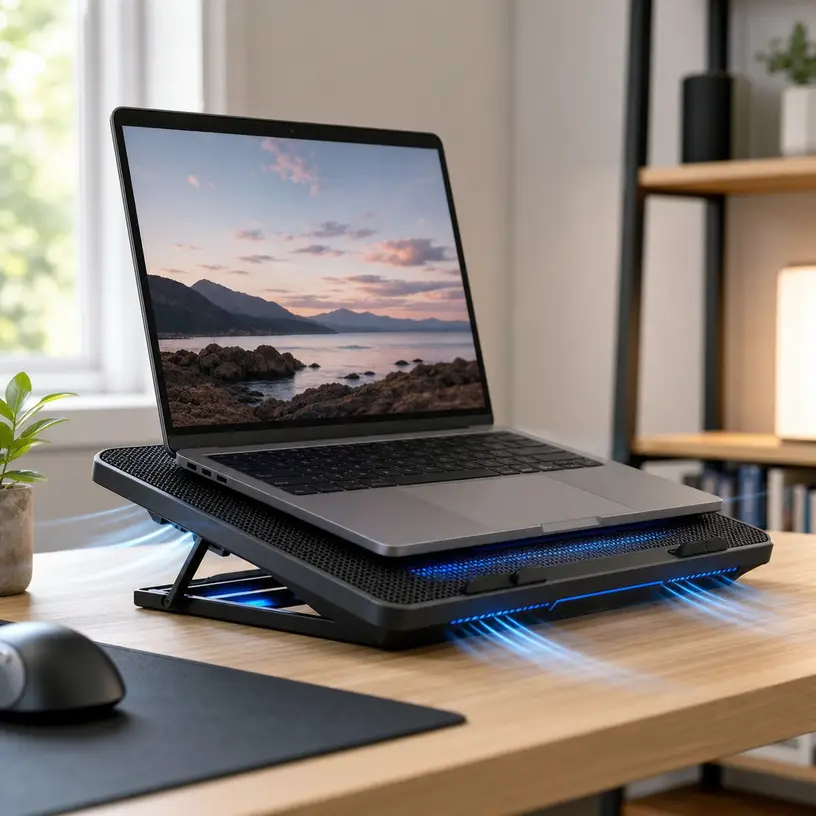
Illustrative image for a laptop cooling pads buying guide

Illustrative image, not an official product photo.

Short answer

Laptop cooling pads fit buyers who want a raised laptop surface with extra airflow for desk work, gaming, or long sessions. Compare laptop size fit, fan layout, USB power needs, angle adjustment, noise wording, grip design, and desk footprint before buying.

Search reference

Laptop cooling pad options

Compare current options and verify details on the retailer page before buying.

View matching options

What this product type is

Laptop cooling pads are desk accessories that lift a laptop and use vents, fans, or airflow space to support heat management during everyday work or gaming. Current listings vary by supported laptop size, number of fans, USB power method, angle adjustment, surface grip, noise wording, lighting, and portability. Treat the pad as part of a desk setup, not a guaranteed repair for a laptop with deeper thermal issues.
This guide treats the seed listing as a category signal only. Compare current matching options and verify details on the retailer page before buying.

Who this is for

  • Laptop users who work or game for long sessions at a desk.
  • People who want a raised typing or viewing angle with added airflow.
  • Buyers with compact desks who need a slim accessory rather than a full stand.
  • Students or remote workers building a low-cost laptop setup.

Who should skip it

  • Skip this type if the laptop is overheating because of a hardware fault or blocked vents that need service.
  • Choose an ergonomic stand if screen height matters more than active cooling.
  • Avoid unclear listings when laptop size fit, fan power, or noise details are missing.

What to verify before buying

  • Check the supported laptop size range and actual pad dimensions.
  • Verify fan count, fan placement, and whether speed controls are listed.
  • Review USB power requirements and whether a cable is included.
  • Check angle adjustment, stopper tabs, and surface grip design.
  • Verify noise wording, lighting controls, and portability details if those matter.
  • Review current seller information, warranty terms, and return policy.

Main buying notes

Laptop size fit matters more than the general category name. A pad that is too narrow can feel unstable, while a large pad can dominate a small desk.
Fan layout should line up with how your laptop vents. Check the current listing images and specifications before assuming airflow will help.
USB power is part of cable management. Verify whether the pad needs one port, includes pass-through ports, or uses a cable length that fits your desk.
Noise and lighting are comfort details. If you work in quiet rooms, look for clear wording about fan controls and lighting behavior.

Limitations

  • A cooling pad cannot fix internal dust, failing fans, dried thermal paste, or poor laptop maintenance.
  • Fan noise can distract some users in quiet rooms.
  • Extra USB cables may add clutter to a small desk.
  • Raised angles can change typing comfort depending on wrist position.

Alternatives to compare

  • Passive laptop stands for screen height and airflow space.
  • External keyboards and mice for a more ergonomic desk setup.
  • Laptop maintenance or repair when heat issues are severe.
  • Desktop PCs when sustained performance matters more than portability.

FAQ

What should I verify before buying a laptop cooling pad?

Verify laptop size fit, fan layout, USB power needs, angle adjustment, grip design, noise wording, seller information, and return policy.

Can a laptop cooling pad fix overheating?

It may help with airflow in some desk setups, but it cannot repair internal dust, failing fans, or hardware thermal problems.

How should I compare laptop cooling pad fan layouts?

Check where your laptop intake vents are, then compare that with the fan placement shown on the current retailer page.

Do laptop cooling pads need USB power?

Many active cooling pads use USB power. Verify cable type, port needs, and any pass-through port details before buying.

What alternatives should I compare with laptop cooling pads?

Compare passive laptop stands, external keyboards and mice, maintenance service, and desktop computers depending on your main problem.

Wireless Earbuds: Who They Fit and What to Check Before Buying

Product links are for reference. Verify current details on the retailer page before buying.

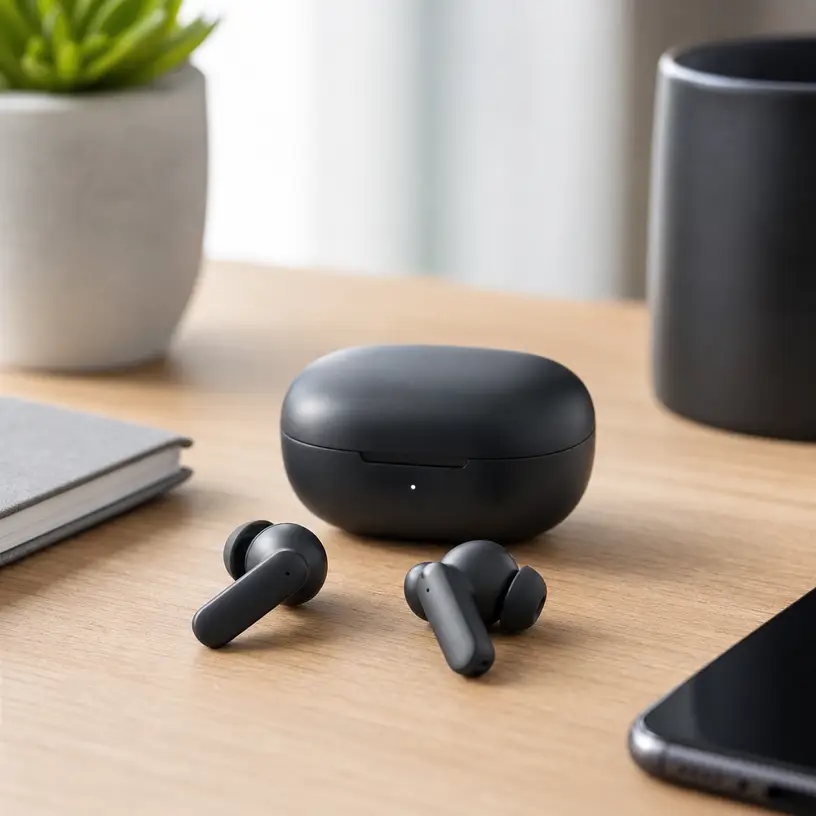
Illustrative image for a wireless earbuds buying guide

Illustrative image, not an official product photo.

Short answer

Wireless earbuds fit buyers who want compact audio for commuting, calls, workouts, or desk use without a cable. Compare ear tip fit, Bluetooth compatibility, charging case size, controls, microphone needs, battery wording, and water-resistance claims before buying.

Search reference

Wireless earbud options

Compare current options and verify details on the retailer page before buying.

View matching options

What this product type is

Wireless earbuds are small Bluetooth audio devices that usually pair with a charging case. They are commonly compared by fit style, case size, controls, microphone needs, battery wording, water-resistance wording, and device compatibility. Because comfort and audio preference are personal, the current listing details matter more than broad marketing language.
This guide treats the seed listing as a category signal only. Compare current matching options and verify details on the retailer page before buying.

Who this is for

  • Commuters who want compact everyday audio.
  • People who take calls from a phone or laptop.
  • Gym users who need cable-free listening.
  • Buyers replacing wired earbuds with a small charging case setup.

Who should skip it

  • Choose over-ear headphones if comfort for long sessions matters more than pocket size.
  • Skip tiny earbuds if you often lose small accessories.
  • Avoid listings with unclear compatibility, charging, or water-resistance wording.

What to verify before buying

  • Check supported Bluetooth version and device compatibility wording.
  • Verify ear tip sizes, fit style, and whether replacement tips are included.
  • Review battery wording for both earbuds and charging case.
  • Check charging port type, cable inclusion, and case size.
  • Verify microphone, controls, app, and noise-control wording if those features matter.
  • Review current seller information, warranty terms, and return policy.

Main buying notes

Fit is the first practical filter. Earbuds with the wrong shape can sound worse and feel uncomfortable even if the feature list looks strong.
Battery wording can describe earbuds alone, the case, or a combined total. Read the current listing carefully before comparing numbers.
Controls vary. Some earbuds use touch controls, some use physical buttons, and some depend on a companion app.
Water-resistance wording should be verified. Do not assume sweat, rain, or submersion support unless the current listing clearly states it.

Limitations

  • Small earbuds can be easy to misplace.
  • Microphone quality varies by environment and device.
  • Battery performance can change with volume, call use, and features.
  • Comfort and sound preference are highly personal.

Alternatives to compare

  • Over-ear Bluetooth headphones for longer listening sessions.
  • Wired earbuds for simple plug-in use.
  • Open-ear headphones when awareness matters.
  • USB microphones or headsets for frequent calls.

FAQ

What should I verify before buying wireless earbuds?

Verify fit style, Bluetooth compatibility, battery wording, charging case details, microphone features, controls, warranty terms, and return policy.

Are wireless earbuds good for calls?

They can be useful for calls, but microphone performance varies. Verify microphone wording and compare current options before buying.

Do wireless earbuds need a charging case?

Most true wireless earbuds use a charging case for storage and recharging. Check case size, port type, and charging details before buying.

How should I compare wireless earbud battery claims?

Check whether the listing describes earbud runtime, case runtime, or a combined total, then compare those details carefully.

What alternatives should I compare with wireless earbuds?

Compare over-ear headphones, wired earbuds, open-ear headphones, and dedicated headsets depending on your main use.

Wireless Gaming Mice: Who They Fit and What to Check Before Buying

Product links are for reference. Verify current details on the retailer page before buying.

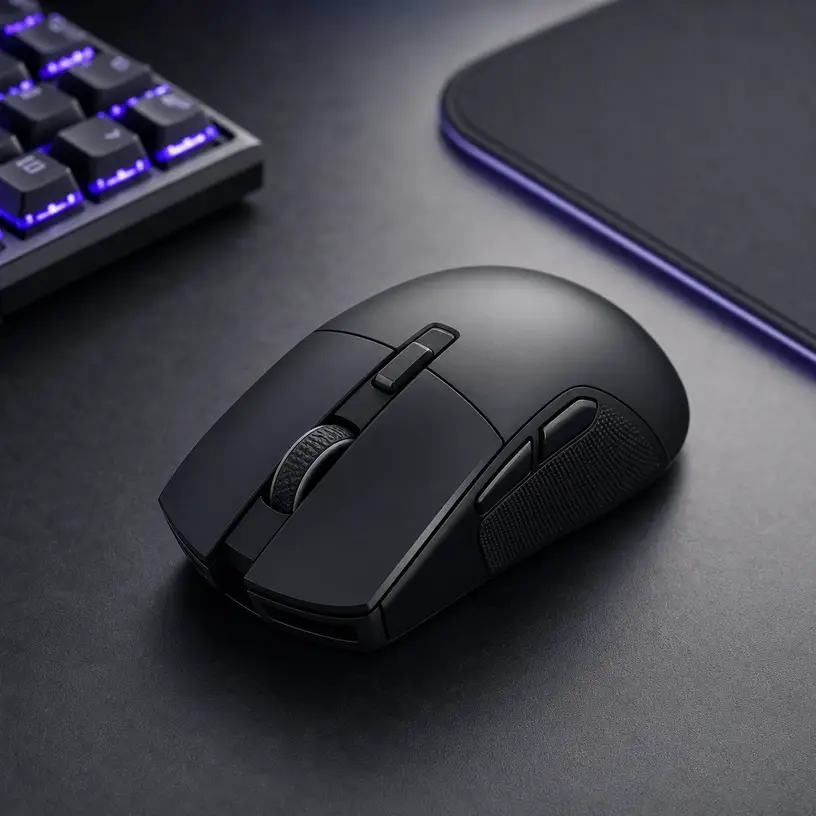
Illustrative image for a wireless gaming mouse buying guide

Illustrative image, not an official product photo.

Short answer

Wireless gaming mice fit players who want a cleaner desk, cable-free movement, and gaming-focused controls without switching to a fully wired setup. Compare shape, hand fit, connection type, battery setup, weight, button layout, software support, and compatibility before choosing one.

Search reference

Wireless gaming mouse options

Compare current options and verify details on the retailer page before buying.

View matching options

What this product type is

A wireless gaming mouse is a computer mouse designed for games, usually with a gaming sensor, adjustable sensitivity, extra buttons, and wireless connection through a USB receiver, Bluetooth, or multiple modes. Buyers usually compare shape, weight, switch feel, receiver storage, charging or battery type, button count, software requirements, and platform compatibility.
This guide treats the seed listing as a category signal only. Compare current matching options and verify details on the retailer page before buying.

Who this is for

  • PC players who want cable-free movement on a gaming desk.
  • Laptop users who switch between work and casual gaming.
  • Buyers replacing a basic mouse with a more configurable option.
  • People who want extra buttons for shortcuts, games, or productivity.

Who should skip it

  • Skip it if you do not want to manage batteries or charging.
  • Compare wired mice if lowest possible latency is your only priority.
  • Avoid complex software-heavy models if you need simple plug-and-play use.

What to verify before buying

  • Check connection type, receiver requirements, Bluetooth support, and platform compatibility.
  • Verify battery type, estimated runtime wording, charging cable, and receiver storage.
  • Review shape, size, weight, grip style, and whether the design suits your hand.
  • Check button count, onboard memory wording, software requirements, and profile support.
  • Confirm sensor claims, sensitivity range, polling-rate wording, and warranty details on the current page.
  • Review return policy and seller information before buying.

Main buying notes

Shape matters more than spec sheets for many buyers. A mouse can have strong technical claims and still feel wrong in hand.
Wireless connection type should match your setup. Some mice rely on a USB receiver, while others offer Bluetooth or wired fallback.
Battery setup affects daily use. Replaceable batteries, rechargeable packs, and USB charging all change the routine.
Software can be helpful, but it can also be a hassle. Check whether required features need a desktop app.

Limitations

  • Battery life varies with settings, lighting, and usage.
  • Some advanced features may require software that is not available on every platform.
  • Wireless receivers can be easy to misplace if there is no storage slot.
  • Fit, weight, and click feel are personal and hard to judge from specs alone.

Alternatives to compare

  • Wired gaming mice for simple connection and no battery management.
  • Lightweight office mice for productivity-first setups.
  • Ergonomic vertical mice for wrist-position comfort.
  • Trackpads or compact travel mice for portable use.

FAQ

What should I verify before buying a wireless gaming mouse?

Verify connection type, battery setup, hand fit, weight, button layout, software support, compatibility, and return policy.

Is Bluetooth enough for a wireless gaming mouse?

Bluetooth may be fine for casual use, but many gaming mice also include a USB receiver. Verify the connection modes before buying.

Do wireless gaming mice need software?

Some features may require software. Check whether sensitivity, buttons, lighting, or profiles need an app.

Should I choose rechargeable or replaceable batteries?

Choose rechargeable if you prefer cable charging, or replaceable batteries if quick swaps fit your routine better.

Does a higher sensitivity number make a better mouse?

Not by itself. Shape, sensor behavior, weight, buttons, and software support also matter.

Over-Ear Bluetooth Headphones: Who They Fit and What to Check Before Buying

Product links are for reference. Verify current details on the retailer page before buying.

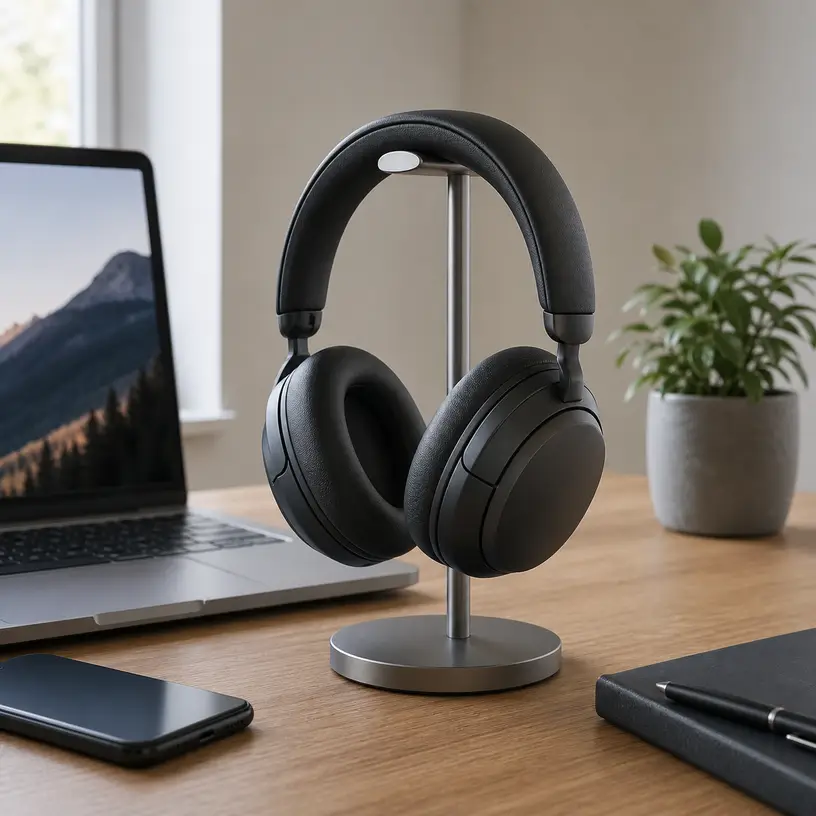
Illustrative image for a over ear bluetooth headphones buying guide

Illustrative image, not an official product photo.

Short answer

Over-ear Bluetooth headphones are useful for commuting, desk work, travel, and private listening when comfort and wireless use matter. Compare fit, ear-cup size, controls, battery wording, charging port, microphone needs, noise features, and connection compatibility before choosing one.

Search reference

Over-ear Bluetooth headphone options

Compare current options and verify details on the retailer page before buying.

View matching options

What this product type is

Over-ear Bluetooth headphones are wireless headphones with ear cups that sit around the ears instead of directly inside them. Buyers usually compare comfort, clamping pressure, battery wording, microphone quality, control layout, codec or wired-use notes, app support, and whether noise-control features fit their environment.
This guide treats the seed listing as a category signal only. Compare current matching options and verify details on the retailer page before buying.

Who this is for

  • Commuters who want wireless listening with more ear coverage than earbuds.
  • Desk workers who wear headphones for long sessions.
  • Travelers comparing portable audio gear for flights, hotels, or shared spaces.
  • Buyers who want physical controls and larger ear cups instead of tiny earbuds.

Who should skip it

  • Skip them if you need pocket-size audio gear above all else.
  • Skip bulky over-ear designs if heat buildup or hair pressure bothers you.
  • Compare wired studio headphones if low-latency wired monitoring is your main need.

What to verify before buying

  • Check battery wording, charging port, and included cable details on the current retailer page.
  • Verify Bluetooth version, device compatibility, and whether wired use is supported.
  • Compare ear-cup size, headband padding, folding design, and case availability.
  • Review microphone and call-control notes if you plan to use them for meetings.
  • Check noise-control wording and do not assume every model cancels sound the same way.
  • Review seller information and return policy before buying.

Main buying notes

Comfort is personal. Ear-cup depth, clamping pressure, and headband padding can matter more than a long feature list.
Battery claims should be verified on the current page. Your actual runtime can vary with volume, noise settings, calls, and age of the battery.
Noise features are not all equal. Some models focus on passive isolation, while others add active noise-control modes.
Controls should match your routine. Check whether volume, pairing, calls, and sound modes are easy to use without looking.

Limitations

  • Over-ear headphones are bulkier than earbuds.
  • Long sessions can feel warm depending on padding and room temperature.
  • Wireless audio latency can vary by device, app, and connection mode.
  • Battery performance and noise-control behavior can vary by model and settings.

Alternatives to compare

  • True wireless earbuds for pocketable daily carry.
  • Wired headphones for no-battery listening.
  • Open-back headphones for quiet home listening where sound leakage is acceptable.
  • On-ear headphones for a smaller design with less ear coverage.

FAQ

Are over-ear Bluetooth headphones better than earbuds?

They can offer more ear coverage and larger controls, while earbuds are usually smaller and easier to pocket.

What should I verify before buying over-ear Bluetooth headphones?

Verify comfort details, battery wording, connection compatibility, controls, microphone notes, noise features, and return policy.

Do all over-ear Bluetooth headphones cancel noise?

No. Check the current retailer page for the exact noise-control wording and feature set.

Can I use over-ear Bluetooth headphones for calls?

Many models support calls, but you should verify microphone and call-control notes before buying.

Is battery life the most important feature?

Battery life matters, but comfort, connection stability, controls, and intended use can matter just as much.

Govee Smart Light Bulbs A19 4-Pack: Who It Fits and What to Check Before Buying

Product links are for reference. Verify current details on the retailer page before buying.

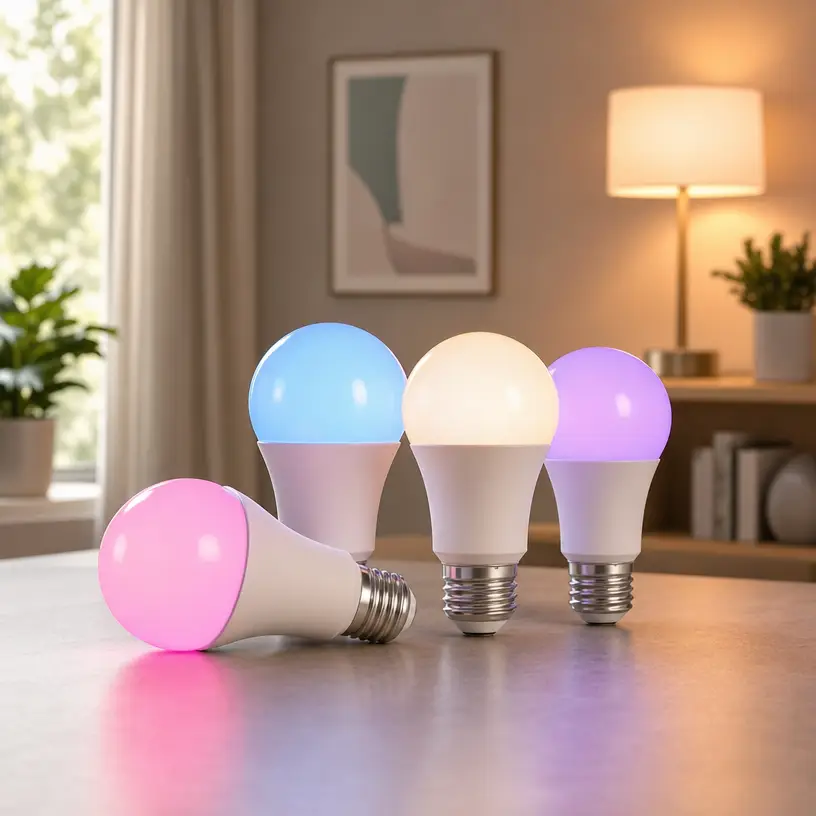
Illustrative smart light bulbs image for a buying guide

Illustrative image, not an official product photo.

Short answer

The Govee Smart Light Bulbs A19 4-pack is worth considering if you want color-changing smart bulbs for basic smart-home lighting and you already plan to verify app, network, and voice-assistant compatibility.

The main things to verify are the current bulb base, Wi-Fi requirements, app setup, room brightness needs, and whether the listed assistant compatibility matches your existing smart-home setup.

Search reference

A19 smart light bulb options

Compare current options and verify details on the retailer page before buying.

View matching options

What this product is

This is a Govee smart LED light bulb listing for a color-changing A19 bulb 4-pack.

Visible product information from the linked page shows:

  • Brand: Govee
  • Product type: smart LED light bulbs
  • Form factor wording: A19
  • Pack size: 4-pack
  • Connectivity wording: Wi-Fi and Bluetooth
  • Compatibility wording: Alexa and Google Assistant
  • Color wording: RGBWW color output
  • Brightness wording visible in the title: 800 lumens
  • Feature wording: music sync

The visible information does not confirm the exact base type, supported Wi-Fi band, app requirements, dimmer-switch compatibility, or room coverage in this draft. Verify those details on the retailer page before buying.

Who this is for

These smart bulbs may fit buyers who:

  • want several smart bulbs for one room or a small multi-room setup
  • want color-changing lighting rather than only warm or cool white lighting
  • already use Alexa or Google Assistant and want to compare compatibility
  • want Wi-Fi and Bluetooth wording in the listing
  • want a 4-pack instead of buying a single bulb

They may also fit renters or casual smart-home users who want lighting changes without installing new fixtures.

Who should skip it

Skip or compare more options if:

  • your fixtures do not accept the current bulb base or bulb shape
  • your home network setup is not compatible with the listed requirements
  • you need verified support for a specific smart-home platform not shown in the visible title
  • you need very high brightness for task lighting
  • you need bulbs that are explicitly compatible with wall dimmer switches

Do not assume every fixture, router, dimmer, or automation platform will work. Compatibility should be checked before buying.

What to verify before buying

Before buying, verify these details on the product page:

  • Confirm the bulb base and fixture compatibility
  • Check the required Wi-Fi band and app setup process
  • Confirm whether Bluetooth is used for setup, control, or both
  • Check whether Alexa and Google Assistant support matches your devices
  • Compare 800-lumen wording with your room brightness needs
  • Confirm whether the bulbs are compatible with enclosed fixtures or dimmer switches
  • Check return policy, delivery timing, and seller information

Main buying notes

The main appeal is smart color lighting in a multi-bulb pack. A19 smart bulbs can be useful for bedrooms, living rooms, desks, lamps, and ambient lighting where color scenes and app control matter.

The trade-off is setup dependency. Smart bulbs rely on the correct fixture, network, app, account, and assistant connection. If one part of that chain does not match your home, the experience can become annoying fast.

If your priority is simple white light, compare standard LED bulbs or tunable white bulbs. If your priority is automation, check platform compatibility first.

Limitations

  • The visible product information does not confirm the exact bulb base in this draft.
  • The visible product information does not confirm the required Wi-Fi band.
  • The visible product information does not confirm compatibility with enclosed fixtures or wall dimmer switches.
  • Voice-assistant compatibility should be verified against your current smart-home devices.
  • Long-term app support, connection stability, and color accuracy cannot be judged from the visible product information alone.

Alternatives to compare

Before deciding, compare it with:

  • single smart bulbs if you only need one fixture
  • tunable white bulbs if color lighting is unnecessary
  • smart light strips for indirect accent lighting
  • smart plugs if you want to control existing lamps without replacing bulbs
  • bulbs with clearly listed support for your preferred smart-home platform

The right choice depends on whether you value color scenes, voice control, brightness, app setup, or platform compatibility most.

FAQ

Is this a 4-pack of smart bulbs?

Yes. The visible title describes a color-changing A19 smart bulb 4-pack. Verify the current selected listing before buying.

Does it support Wi-Fi and Bluetooth?

The visible product information lists Wi-Fi and Bluetooth connectivity. Check the current page for setup details and network requirements.

Does it work with Alexa and Google Assistant?

The visible product information lists compatibility with Alexa and Google Assistant. Verify current compatibility details against your own devices before buying.

How bright are the bulbs?

The visible title states 800 lumens. Compare that wording with your room size, fixture type, and brightness expectations before buying.

What should buyers check first?

Start with bulb base, fixture fit, Wi-Fi requirements, app setup, voice-assistant compatibility, and whether your fixture uses a wall dimmer.

Wireless Mice: Who They Fit and What to Check Before Buying

Product links are for reference. Verify current details on the retailer page before buying.

Illustrative image for a wireless mouse buying guide

Illustrative image, not an official product photo.

Short answer

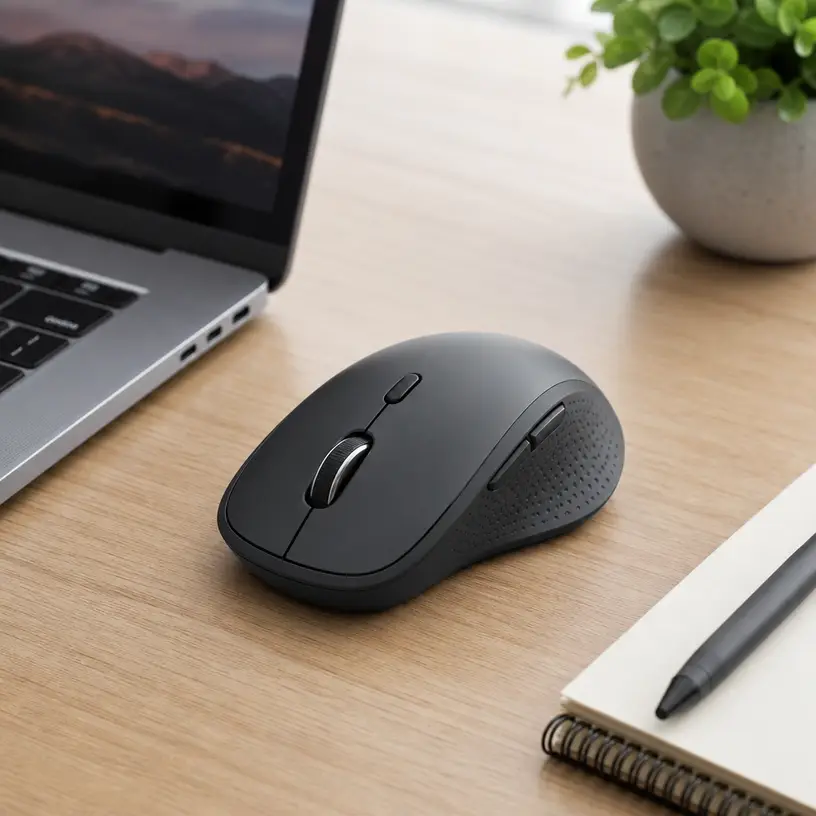
Wireless mice are a simple upgrade for laptop and desk setups when you want less cable clutter and more comfortable pointer control. Compare receiver type, Bluetooth support, hand fit, battery setup, and device compatibility before buying.

Search reference

Wireless mouse options

Compare current options and verify details on the retailer page before buying.

View matching options

What this product type is

A wireless mouse is a cable-free pointing device for laptops, desktops, tablets, and compact workspaces. Buyers usually compare connection type, hand shape, button layout, battery style, tracking behavior, and operating system compatibility.

This guide treats the seed listing as a category signal only. Compare current matching options and verify details on the retailer page before buying.

Who this is for

  • Laptop users who want a more comfortable pointer than a trackpad.
  • Desk users who prefer a cleaner setup with fewer cables.
  • Students or office users who need a compact mouse for a bag.
  • Buyers comparing basic productivity mice rather than specialized gaming gear.

Who should skip it

  • Skip basic wireless mice if you need advanced gaming latency controls or many programmable buttons.
  • Skip USB receiver models if your device lacks a matching port and you do not want an adapter.
  • Compare ergonomic designs if standard small mice cause hand discomfort.

What to verify before buying

  • Confirm whether the mouse uses Bluetooth, a USB receiver, or both.
  • Check device and operating system compatibility on the current retailer page.
  • Verify battery type, charging method, and any battery-life wording.
  • Compare hand size, shape, grip style, and button placement.
  • Check tracking surface guidance if you use glass, fabric, or uneven desks.
  • Review seller information and return policy before buying.

Main buying notes

Connection type is the first decision. A USB receiver can be simple, but it occupies a port. Bluetooth can reduce dongles, but setup depends on the device.

Hand fit matters more than a spec sheet suggests. A compact mouse is easy to carry, while a larger shape may feel better for long desk sessions.

Battery setup changes daily use. Some models use replaceable batteries, while others recharge by cable. Verify current wording before buying.

For work and study, a reliable basic mouse may be enough. For gaming, design, or accessibility needs, compare more specialized options.

Limitations

  • Wireless performance can depend on the receiver, Bluetooth environment, surface, and device settings.
  • Small travel mice may not be comfortable for long sessions.
  • Battery-life wording is not a guarantee for every usage pattern.
  • Some features may require software that is not available on every operating system.

Alternatives to compare

  • Wired mice if you want no batteries or pairing steps.
  • Ergonomic vertical mice for wrist-position preferences.
  • Trackballs for small desks or limited arm movement.
  • Gaming mice if adjustable performance and extra buttons matter.

FAQ

Should I choose Bluetooth or a USB receiver?

Choose based on your device ports, pairing preference, and whether you want to keep a receiver connected. Verify compatibility before buying.

Is a compact wireless mouse good for daily work?

It can be, but hand size and grip style matter. Compare dimensions and shape if you use a mouse for long sessions.

What battery details should I check?

Check whether the mouse uses replaceable batteries or rechargeable power, and verify the current battery-life wording on the retailer page.

Will a wireless mouse work on every surface?

No. Tracking can vary by surface and sensor type, so verify surface guidance if you use glass, fabric, or glossy desks.

What should I verify first?

Verify connection type, compatibility, hand fit, battery setup, button layout, and return policy before buying.