Choosing a USB-C Hub for a Laptop: Ports, Power, and Display Support
Product links are for reference. Verify current details on the retailer page before buying.
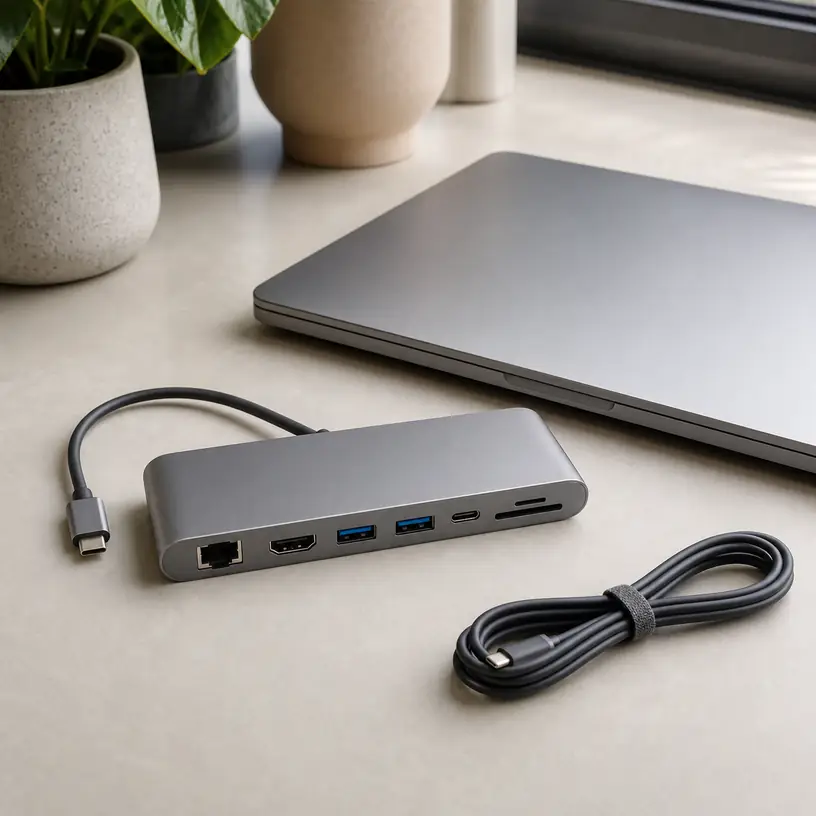
Illustrative image, not an official product photo.
Short answer
Start with the exact functions your laptop’s USB-C port supports, then choose a hub that covers the devices you use together rather than the greatest possible port count. A practical match may need one display output, enough USB data ports for a keyboard and storage drive, a suitable card reader, and pass-through charging that aligns with the laptop’s requirements. Port labels alone are not enough: verify display resolution and refresh-rate combinations, data-speed wording, power behavior, operating-system support, and whether connected accessories share bandwidth.
Search reference
USB-C hub options for laptops
Compare host-port requirements, simultaneous display limits, charging input and output, data speeds, card formats, cable length, and supported operating systems.
View matching optionsMap the setup before counting ports
A seven-port hub is not automatically more useful than a four-port model. Write down what you expect to connect during one typical session: perhaps a monitor, keyboard, mouse receiver, removable drive, memory card, wired network cable, and charger. Mark the devices that must run at the same time. This quickly separates essential connections from ports that only make a specification list look generous.
Next, inspect the laptop rather than assuming every USB-C socket behaves alike. A port may carry data, accept charging, send video, or combine some of those functions, but the connector shape by itself does not confirm which features are enabled. Laptop documentation and port markings are better starting points than a hub listing. If the host port cannot provide a required function, attaching a hub generally does not add that capability.
Think about where the hub will sit as well. A short built-in lead may work beside a notebook on a desk but hang awkwardly from a raised laptop stand. A crowded row of ports can make wide flash drives block adjacent sockets. For travel, an attached cable is one less part to lose; for a fixed workstation, a detachable and replaceable host cable may be more convenient when the product supports the correct cable specification.
Who this is for
- Laptop users who regularly need to connect legacy USB devices, a display, removable media, or wired networking through one USB-C port.
- Hybrid workers who want a compact connection point that can move between home, office, and meeting rooms.
- Photographers and creators who need a card reader alongside storage or display connections, after confirming the required card format and speed.
- People with thin laptops that have enough USB-C capability but too few physical connectors for their everyday desk setup.
- Travelers who can accept a smaller selection of ports in exchange for lower bulk and fewer loose adapters.
Who should skip it
- Skip a video-equipped hub if the laptop’s chosen USB-C port does not support the required display output.
- Choose a powered desktop dock when the setup involves several demanding peripherals, multiple monitors, or a permanent workstation that needs more predictable expansion.
- Use a single-purpose adapter when you only need one occasional connection and do not want extra size, heat, or compatibility variables.
- Avoid relying on a compact hub as the sole charging solution until its pass-through behavior and the laptop’s power requirements are confirmed.
- A wireless workflow may be simpler if your accessories, network, and display already connect reliably without cables.
What to verify before buying
- Host-port capability: Confirm whether the laptop port supports data, video output, and charging as required; check model-specific documentation when several USB-C ports differ.
- Display combinations: Verify the output connector, maximum supported resolution and refresh rate, number of simultaneous displays, and operating-system limitations for the exact arrangement.
- USB data speed: Check the stated capability of each data port and remember that the hub’s upstream connection may be shared among active devices.
- Power delivery: Compare supported charger input, reserved hub power, maximum laptop output, and the computer maker’s charging guidance. A charger may not be included.
- Card-reader format: Match SD, microSD, or another named format to the cards you use, and verify whether multiple slots can operate together.
- Network connection: If Ethernet matters, confirm the connector, stated network capability, driver needs, and whether the host setup can use it.
- Port spacing: Look for enough room around wider plugs, receivers, card slots, and display cables without blocking neighboring connections.
- Host cable: Check length, orientation, strain relief, and whether an included or detachable cable supports every advertised feature.
- System compatibility: Review current support notes for the laptop model, operating system, monitors, and any specialized peripherals.
Video output is a chain, not a single port
Seeing an HDMI or DisplayPort connector on a hub only confirms that there is a physical output. A working display path also depends on the laptop’s host port, graphics hardware, operating system, hub design, cable, monitor input, and the requested resolution and refresh rate. If any part of that chain falls short, the display may use a lower mode or fail to behave as expected.
Multiple-monitor wording deserves particular care. Some operating systems and laptop families handle extended desktops through hubs differently, and a pair of physical outputs does not guarantee two independent external workspaces. Read the current compatibility notes for the exact computer and desired screen arrangement. A dedicated docking solution may be a better fit when two or more monitors are central to the desk.
Do not choose only by the highest resolution printed in a heading. A monitor used for office documents may prioritize stable connection and convenient wake behavior, while a high-refresh display requires a different bandwidth calculation. Confirm the complete resolution-and-refresh combination and whether other active hub functions change it.
Pass-through charging has a power budget
Many compact hubs include a USB-C input intended for a charger and pass some power onward to the laptop. The headline input figure and the power reaching the computer may not be identical because the hub and attached devices also need energy. Compare the hub’s stated input and output limits with the laptop’s normal charger requirement instead of assuming any USB-C power adapter will produce normal charging performance.
Use a charger and cable suitable for the required power and follow the laptop manufacturer’s guidance. If no charger is included, the hub does not create charging power on its own. Some notebooks may charge more slowly, display a power warning, or consume battery during heavy work when the delivered power is below demand.
Power-hungry portable drives and other accessories can also affect stability. If several devices disconnect under load, the solution may require a powered hub or dock rather than another bus-powered model. Avoid stacking adapters casually; every added connector and cable introduces another point to verify.
Shared bandwidth changes real-world use
A hub combines several connections into one upstream link, so simultaneous tasks may compete for available data capacity. Copying large files from a memory card to an external drive while driving other functions is a different workload from using a keyboard and mouse receiver. Product pages may state individual port capabilities without making every simultaneous combination equally clear.
Plan around the busiest realistic task. If fast external storage is important, a direct laptop connection or a hub with clearly documented performance may be preferable. A slow keyboard does not need a premium high-speed socket, so port placement can reserve the most capable connection for storage or another demanding device.
Wireless receivers can experience interference or poor range when tucked among metal connectors and active high-speed devices. A little physical separation, a short extension, or a different port can help with layout, but follow the accessory maker’s troubleshooting guidance rather than assuming the hub is defective.
Desk hub or travel hub?
A travel hub should protect its cable in a bag, avoid sharp protrusions, and provide the few ports you are likely to encounter away from home. Smaller housings can become warm during normal operation, so place the hub where air can circulate and follow its temperature and safety guidance. Do not bury it under papers or fabric while loaded.
A desk-focused model can justify a longer cable, more generous spacing, a network port, and additional display options. Rubber feet or a stable body may keep it from sliding when stiff cables pull in different directions. If the hub will remain connected every day, check whether the cable route strains the laptop port or leaves the housing suspended by its lead.
Labeling also matters more than it seems. Clear port symbols reduce mistakes when similar USB-C sockets serve different roles, such as host connection, charging input, or data. Before plugging in a device, confirm which function the socket is intended to provide.
Limitations
- A USB-C connector does not guarantee video, charging, or a particular data speed; the laptop’s implementation controls what the hub can use.
- Advertised port counts do not guarantee that every connection can run at its maximum capability simultaneously.
- Pass-through charging can deliver less power to the laptop than the connected charger supplies to the hub.
- Multi-display support may vary by laptop hardware, operating system, hub technology, resolution, and refresh rate.
- Compact hubs can become warm and may place mechanical strain on a laptop port if heavy cables are poorly supported.
- Card slots, network ports, and specialized peripherals may need system support or drivers, and compatibility can change with updates.
- A hub adds connectivity but does not replace backups, safe drive-ejection practices, surge protection, or proper handling of storage devices.
Alternatives to compare
- A single USB-C-to-HDMI, Ethernet, or USB-A adapter for one occasional connection with fewer compatibility questions.
- A powered desktop dock for a permanent workspace with multiple displays, several peripherals, and higher charging needs.
- A monitor with built-in USB-C connectivity and downstream ports, after confirming laptop charging and hub functions.
- Direct laptop connections for high-speed storage or critical devices, leaving the hub for keyboards, receivers, and lower-demand accessories.
- Bluetooth or network-based accessories when reducing cable clutter matters more than using existing wired devices.
FAQ
Will any USB-C hub work with any USB-C laptop?
No. The plugs may fit, but video, charging, data speed, and multi-display behavior depend on the laptop port and system support. Compare the hub requirements with documentation for the exact laptop model.
Can a USB-C hub charge my laptop?
Only if the hub supports pass-through power, the selected laptop port accepts charging, and a suitable charger and cable are connected. Verify the maximum power delivered to the laptop, not only the hub’s charger-input figure.
Why does a hub with two display outputs not always provide two extended monitors?
Physical outputs are only part of the display path. Laptop graphics capabilities, operating-system behavior, hub technology, cables, and the requested resolution and refresh rate determine which monitor arrangements are supported.
Do all ports on a USB-C hub run at full speed together?
Not necessarily. Several ports may share the hub’s upstream data connection and power budget. Check current documentation for simultaneous-use limits, especially when transferring files between fast storage devices.
Is a powered dock better than a compact hub?
It can be for a fixed desk with multiple demanding peripherals, several displays, or substantial laptop charging needs. A compact hub is usually easier to carry and may be sufficient for a simpler connection map.