Laptop Sleeves for Commuting: Fit, Closure, and Bag Protection
Product links are for reference. Verify current details on the retailer page before buying.
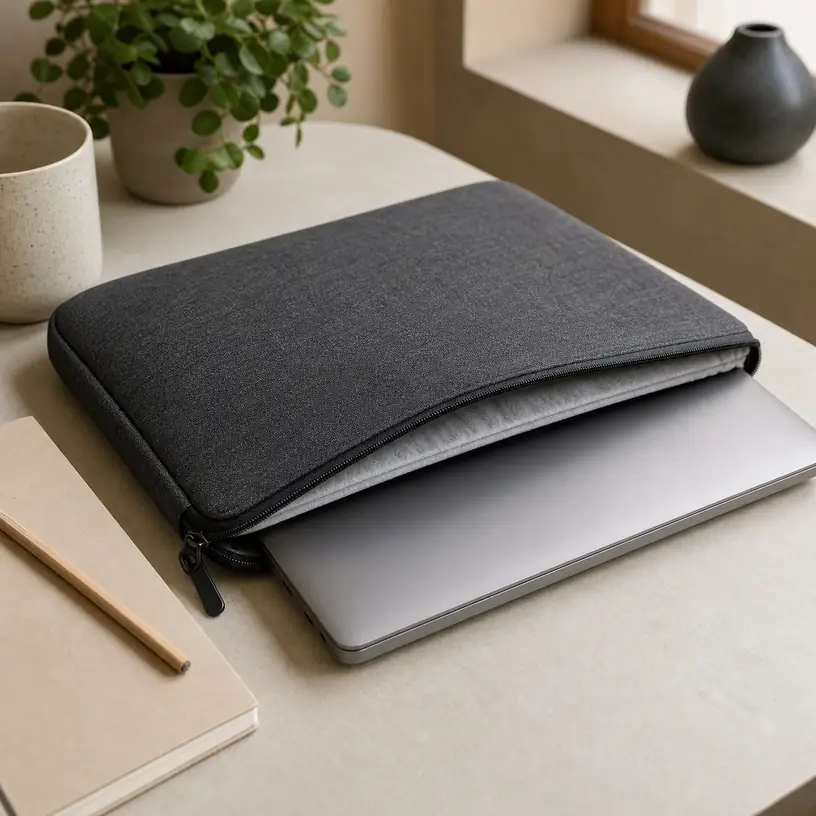
Illustrative image, not an official product photo.
Short answer
A commuter laptop sleeve should fit the computer itself, fit inside the bag you actually carry, and add useful cushioning without becoming another bulky case. Compare the laptop’s full outside dimensions—not only its advertised screen size—with the sleeve’s stated interior dimensions. Then look at corner protection, zipper placement, lining, closure security, and whether an accessory pocket stays reasonably flat when loaded. A sleeve can reduce everyday scuffs and minor bumps, but it does not make a laptop waterproof or safe from a hard drop.
Search reference
Laptop sleeve options for commuting
Compare current interior measurements, padding layout, closure style, lining, pocket depth, and care notes against both your laptop and the work bag that will carry it.
View matching optionsTwo fits matter on a daily commute
Laptop sleeves are often selected by screen-size labels such as 13-inch, 14-inch, or 15-inch, but that number describes a diagonal display measurement rather than the computer’s outer footprint. Two laptops sold in the same screen class may differ in width, depth, thickness, feet, hinges, and edge shape. A close sleeve fit can limit sliding, while an overly tight fit may strain the zipper or press against the device. Too much spare room allows the laptop to shift before the padding can help.
The second fit is easy to overlook: a padded sleeve must still slide into your backpack, tote, briefcase, or bike pannier. Exterior seams, handles, pockets, and thick corner padding make the sleeve larger than its interior cavity. Measure the bag opening as well as its laptop compartment. A sleeve that technically fits inside a bag may still catch on a narrow zipper or crowd out a lunch container, headphones, or travel umbrella.
For commuting, the best choice is usually not the sleeve with the longest feature list. It is the one that makes packing and unpacking predictable at a desk, security checkpoint, train seat, or shared workspace without leaving the laptop loose in a bag.
Who this is for
- Commuters whose backpack or tote has little padding around its laptop compartment.
- Hybrid workers who move one computer between home, office, and occasional coworking spaces.
- Students carrying a laptop in the same bag as books, notebooks, chargers, and other firm objects.
- Travelers who want a removable protective layer that can transfer between a carry-on and day bag.
- People who sometimes carry a laptop by hand for short indoor walks and want a simple grip or handle.
Who should skip it
- Skip a sleeve-only setup if you need a rigid case for demanding transport conditions or frequent handling around heavy equipment.
- Choose a dedicated laptop backpack if adding a separate sleeve makes your current bag too crowded or slow to organize.
- Avoid assuming any ordinary fabric sleeve can protect electronics from rain, spills, or submersion.
- Consider a fitted shell only if you need protection that stays attached while the laptop is in use and the shell is compatible with the exact model.
- Do not use a tight sleeve that presses keys, obstructs vents while the laptop is running, or requires force to close.
What to verify before buying
- Measure the laptop’s maximum width, depth, and thickness, including feet or a thin attached shell, and compare all three numbers with the listed interior dimensions.
- Check the sleeve’s exterior dimensions against the narrowest part of the intended bag opening and compartment.
- Look at where cushioning is placed, especially along corners, edges, and the bottom that meets the floor when a bag is set down.
- Confirm whether the closure is a zipper, flap, hook-and-loop tab, magnetic closure, or open top, and consider how securely it stays shut in a moving bag.
- Examine zipper-guard wording and lining details so metal hardware is less likely to rub directly against the computer.
- Check what the accessory pocket can hold without pressing bulky chargers or adapters against the laptop.
- Verify handle construction if the sleeve will be carried on its own, rather than treating a decorative strap as a load-bearing handle.
- Review cleaning instructions, current material descriptions, seller details, and return terms before ordering.
Padding should protect the vulnerable route, not just look plush
Thick foam across the large flat panels can feel reassuring, but commuting wear often reaches a laptop through its edges and corners. Bags are placed on floors, nudged under seats, squeezed in lockers, and bumped against door frames. A sleeve with a padded lower edge or raised corner construction may address those moments more directly than soft lining alone. Current product diagrams can help show the padding layout, but confirm dimensions and construction in the listing rather than judging only from staged photos.
More padding also has a cost. It occupies bag space, adds weight, and can trap more heat if a warm laptop is put away immediately. Shut the computer down or let it reach an appropriate state before storage according to its manufacturer guidance. A sleeve is intended for transport, not for operating a laptop with ventilation covered.
If your route includes crowded public transportation, think beyond impact padding. A closure that stays shut and an outer surface that is easy to grip may matter every day. For bicycle commuting, a sleeve still needs to sit inside a suitable bag; it should not be treated as weatherproof cargo protection unless the current specifications explicitly support the conditions you expect.
Closure and opening direction change the routine
A three-sided zipper creates a wide opening and can make it easier to place a close-fitting laptop without scraping its edges. It also adds more hardware around the device. Look for an internal zipper guard or a layout that keeps the slider from resting against the laptop. Before lifting a sleeve by its handle, make it a habit to check that the closure is fully secured.
A flap or envelope closure can avoid a zipper along the device edge and may create a cleaner profile. The tradeoff is that retention depends on the flap overlap and fastening method. An open-top sleeve offers quick access inside another secure compartment but is less reassuring when carried alone or turned upside down.
Opening direction matters in tight spaces. A top-loading sleeve may work well inside a vertical backpack compartment. A side-opening design may be easier on a desk but awkward if the bag compartment only exposes one short edge. Picture the actual sequence of removing the sleeve and laptop on your usual route before choosing.
Keep the accessory pocket realistic
An exterior pocket is useful for a slim charging cable, small hub, pen, or a few documents. A large power adapter, mouse, portable drive, and multiple cables can turn a flat sleeve into an uneven bundle. That bulk may press against the laptop panel, stress the pocket seam, or prevent the sleeve from sliding into the bag compartment.
If you carry several accessories, a separate organizer can be easier to pack and keeps hard objects away from the computer. It also lets you leave the sleeve thin on days when only the laptop is needed. For a single charger, check whether the pocket has its own padding or merely places the adapter directly against the device through one fabric layer.
Cable storage deserves a little care. Disconnect accessories before packing, avoid tight bends near connector ends, and do not let plugs sit where they can press into the laptop. A roomy pocket is not automatically a safe place for every object that fits.
Fabric, lining, and weather limits
Common sleeve descriptions may mention woven fabric, synthetic leather, felt-like material, foam, or soft lining. Those terms do not establish identical durability, cushioning, or water resistance across products. Check the current material and care wording, and consider how the exterior will handle a dusty floor, drink spill, or repeated rubbing inside a bag.
“Water-resistant” should not be read as waterproof. Seams, zippers, pocket openings, and closures may admit water even when droplets bead on the outer fabric. Keep drinks separated from electronics, use a suitable weather-protective bag when rain is likely, and dry a damp sleeve fully before putting a laptop back inside. If liquid reaches the computer, follow the device maker’s safety guidance rather than relying on the sleeve to contain it.
A pale soft lining can make small debris easier to notice, while a dark lining may hide marks. Either way, check the interior before inserting the laptop. Sand, crumbs, staples, or a forgotten adapter can cause damage that padding cannot prevent.
Limitations
- A soft sleeve can reduce scuffs and cushion minor everyday contact, but it cannot guarantee protection from drops, crushing, or bending forces.
- Screen-size labels do not guarantee device fit; exact laptop and sleeve dimensions still need comparison.
- Water-resistant exterior material does not make seams, zippers, or the complete sleeve waterproof.
- Thick padding and loaded accessory pockets can make a sleeve too bulky for a bag that previously fit the bare laptop.
- Soft lining can collect grit or debris and should be checked and cleaned according to the listed care instructions.
- Search results may change, so current dimensions, included straps, pocket layouts, materials, and closure details require verification.
Alternatives to compare
- A backpack or briefcase with a suspended, padded laptop compartment for an all-in-one commute setup.
- A rigid or semi-rigid laptop case when resistance to compression matters more than low bulk.
- A model-specific snap-on shell for scratch protection that remains attached during use, after checking ventilation and fit.
- A separate tech pouch for chargers, hubs, drives, and cables that would make a sleeve pocket too bulky.
- A weather-protective backpack liner or suitable dry storage when the route involves sustained rain or open transport.
FAQ
Can I choose a laptop sleeve by screen size alone?
No. Screen size is a diagonal display measurement and does not fully describe the laptop’s width, depth, or thickness. Measure the device and compare all dimensions with the sleeve’s stated interior measurements.
How snug should a commuter laptop sleeve be?
It should limit unnecessary sliding while allowing the laptop to enter and leave without force. Leave enough clearance for the zipper or flap to close without pressing hard on the corners, hinge, or any attached shell.
Should a charger go in the sleeve pocket?
Only if the pocket can hold it without creating a hard pressure point against the laptop or straining the seams. A separate accessory pouch is often more practical for a large adapter, mouse, hub, and several cables.
Is a water-resistant laptop sleeve enough for rain?
Do not assume so. Water can enter through zippers, seams, and openings even when the outer fabric resists light droplets. For a wet commute, place the sleeve inside a bag designed for the expected conditions and keep electronics away from wet items.
Does more padding always mean better protection?
Not necessarily. Padding placement, corner coverage, closure security, device fit, and how the sleeve sits inside the main bag all matter. Extra foam that makes the sleeve difficult to pack may not improve the real commute.