Adding a Portable Monitor to a Laptop: Start with Ports, Power, and Placement
Product links are for reference. Verify current details on the retailer page before buying.
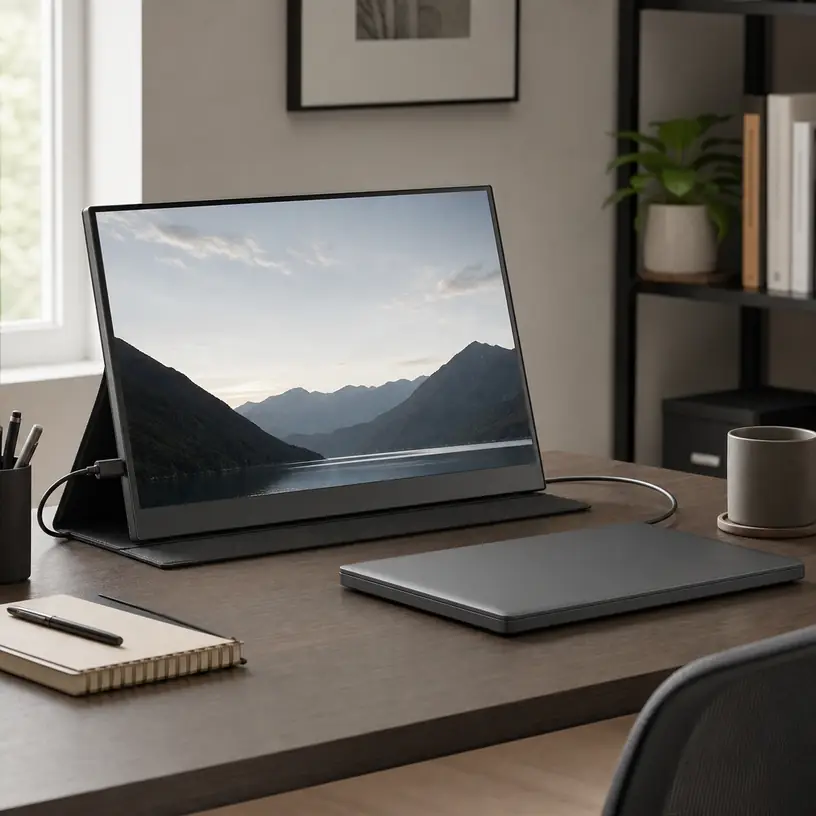
Illustrative image, not an official product photo.
Short answer
A portable monitor is useful only when the laptop can send it video, the setup has enough power, and the screen can stand securely in the space where it will be used. Trace those three things before comparing panel features. A USB-C port may support charging and data without carrying display video, while an HDMI connection usually still leaves the monitor needing a separate power cable. Check the laptop’s port specifications, map every cable and adapter, and measure the table depth with both devices open. Then compare screen size, resolution, finish, controls, stand design, weight, and protection as one complete travel system rather than treating the display alone as the purchase.
Search reference
Portable monitor options for laptops
Compare input requirements, power arrangements, included cables, screen dimensions, stand geometry, controls, and packed weight against your exact laptop and workspace.
View matching optionsDraw the connection before choosing the screen
The cleanest product photo often shows one cable between a laptop and monitor. That arrangement is possible with some combinations, but the connector shape alone does not establish compatibility. USB-C is used for several different capabilities. The laptop port must provide an appropriate display-output mode, and the monitor must accept it. The cable also needs to support the required connection; a cable intended mainly for charging may not carry video.
Start with the laptop maker’s documentation for the exact model and port. Look for the display-output capabilities attached to each physical port, not a general statement that the computer “has USB-C.” If the monitor uses a compatible USB-C video input, find out whether it can receive video and operating power through the same connection under the intended settings. Some laptops or monitors may need another power source even when a picture travels over USB-C.
HDMI creates a different map. It commonly handles the video path, while USB or an adapter supplies power to the monitor. A laptop with only one HDMI port may also need that port for a projector at work or a television at home. A mini-HDMI connector on the display requires the correct cable orientation, and a small adapter protruding from the side can be vulnerable to bumps. List every occupied port, cable, adapter, and wall connection before buying; this makes a supposedly portable setup much easier to judge.
Who this is for
- Laptop users who regularly need a second document, timeline, preview, dashboard, or communication window beside their main work.
- People who move between temporary desks and can control the surface, power access, and cable arrangement.
- Travelers willing to carry a protected display, stand, and compatible cables in addition to the laptop and charger.
- Small-space users who want a screen that can be stored after work instead of remaining on a permanent monitor arm.
- Presenters who need a separate viewer-facing screen and can confirm that the software and operating system support the intended display mode.
- Console, camera, or other device users who have verified the source output, monitor input, audio plan, and power requirements for that exact combination.
The strongest reason to add this product is a repeatable two-screen task. If the second display will consistently hold reference material while the laptop remains the active workspace, even a modest portable panel can reduce window switching. If the use is only occasional, an existing tablet’s supported second-screen feature or a larger fixed monitor may be simpler.
Who should skip it
- Skip a second panel when the laptop cannot provide a compatible video output and the required conversion path is uncertain or disproportionately complicated.
- A commuter who already carries a heavy bag may get more value from improving the laptop-only workflow than adding a fragile screen, cover, stand, and cables.
- Color-critical photo, print, or video work needs verified display performance and a suitable calibration workflow; “full color” marketing language is not enough.
- Fast competitive play may call for carefully confirmed refresh, response, synchronization, and source compatibility rather than a general-purpose travel display.
- A very narrow café table, tray table, or shared counter may not safely accommodate two open screens and side-facing connectors.
- Anyone expecting a portable monitor to behave as a standalone computer should check the product type. Most conventional models need an external video source and do not run laptop applications independently.
What to verify before buying
- Laptop video output: Identify which exact port can send display video and which protocol or alternate mode the current laptop documentation specifies.
- Monitor inputs: Match the monitor’s full-size HDMI, mini-HDMI, USB-C, or other input to the source without assuming that similar-looking ports have identical functions.
- Power path: Determine whether the laptop can power the monitor during real use, whether a second USB connection is required, and whether a wall adapter is included or merely shown.
- Cable capabilities: Check that every included or planned cable supports its assigned job: video, power, or both. Note length and plug orientation as well.
- Operating-system support: Confirm the number of external displays, resolutions, orientations, scaling options, and mirrored or extended modes supported by the laptop and its current configuration.
- Visible and overall dimensions: Compare the panel size, bezel, thickness, and stand footprint with the desk and bag rather than shopping by diagonal measurement alone.
- Resolution and scaling: Consider text size at your viewing distance and whether the operating system can create a comfortable scale across laptop and external screens.
- Panel finish and viewing conditions: Decide whether reflections, off-angle viewing, and room brightness make a matte or glossy-looking surface more practical for the intended location.
- Stand and orientation: Verify usable tilt angles, portrait support if needed, hinge stability, and whether plugs remain accessible in each orientation.
- Controls: Locate the power, menu, brightness, input, and audio controls and check whether common adjustments can be made without navigating an awkward sequence.
- Packed system: Add the weights and dimensions of the monitor, protective cover, separate stand, cables, adapters, and power source.
- Return and support details: Connection problems can be specific to a device combination, so review the current documentation, support route, and return terms before committing.
Screen size is also a workspace decision
A larger diagonal gives windows more physical room, but it also increases the footprint and leverage on the stand. Put the laptop in its normal position and mark the proposed monitor width with paper or painter’s tape. Include the bezel and any side connector that cannot bend sharply. Then check whether a mouse, notebook, drink, and charger still have safe places to go.
Table depth matters as much as width. A folio-style cover may fold behind the panel, while a kickstand can extend farther back than expected. The laptop screen and portable panel should sit at usable angles without pressing against each other. On a shallow desk, turning the laptop toward the monitor can create an inward V shape that improves viewing but consumes front-edge space. A separate stand may reduce the rear footprint or raise the panel, yet it adds another item to carry and another joint that can move.
Compare packed dimensions with the actual laptop compartment or sleeve. Matching diagonal sizes do not guarantee that two devices have matching external dimensions. Do not place an unprotected monitor where plugs, pens, keys, or the laptop chassis can press against its display surface. If a protective cover also functions as the stand, assess both jobs: a cover that cushions the panel well may still offer only one unstable viewing angle.
Resolution, scaling, and the work you plan to put there
Resolution has to be considered with panel size, viewing distance, operating-system scaling, and the applications in use. A high pixel count does not automatically produce a more comfortable workspace if text becomes too small or the selected scale leaves too little logical desktop area. Conversely, enlarging text on a lower-resolution panel may make a detailed spreadsheet or editing timeline feel constrained.
Think in terms of the second screen’s assignment. A document, chat panel, music controls, or presentation notes may not need the same pixel density as a fine preview or densely arranged tool palette. If the laptop and portable monitor have very different pixel densities, windows can appear to change size when dragged between them. Current operating systems often provide per-display scaling controls, but application behavior can vary, so confirm the intended workflow where possible.
Orientation can be more meaningful than another specification increase. Portrait mode may suit a long document or code view, but only if the stand supports it securely, the operating system rotates the output, the controls and connectors remain reachable, and the viewing characteristics are acceptable after rotation. A monitor advertised as rotatable may still depend on a separate stand or manual software setting.
Power changes the meaning of portable
A screen drawing power from the laptop reduces the number of wall connections, but it can shorten laptop battery time. Brightness, audio, panel settings, laptop workload, and connection method all affect the result. A manufacturer-provided power figure can help compare options, yet it will not predict an exact unplugged runtime for every computer.
For an outlet-based desk, a compatible charger with sufficient connections may make the layout tidier. Confirm how power is divided when more than one device is connected and whether each port supports the required output. Do not assume a charger, cable, or power bank is suitable because the connector fits. Follow the current electrical and charging instructions for the laptop, monitor, and power source.
For travel, rehearse the complete setup at home. Connect it in the same order you expect to use, disconnect the wall power, and see how the laptop reports battery use. Test waking from sleep and reconnecting after a restart. Label similar-looking cables if only one reliably carries display video. This practical check is more informative than planning around an ideal one-cable diagram that has not been tried with the actual devices.
A stable stand matters more than a thin profile
Portable displays are light enough to move easily, which also means cable tension and table vibration can move them. A stand should support the chosen viewing angle without placing the screen close to tipping. Side-connected cables need relaxed bends and enough slack that a person brushing the cable does not pull the panel toward the floor.
Integrated kickstands can be quick to deploy and eliminate a loose accessory. Folio stands protect and support the panel but may rely on folds, magnets, or friction that work differently on smooth, soft, or uneven surfaces. A separate metal or plastic stand can offer more height and angle choices, although its stated size and load range still need to suit the monitor. Confirm that a clamp or magnetic attachment is intended for the product before using it; improvised mounting can obstruct ventilation, controls, or connectors.
On a public or shared table, position the setup away from the edge and route cables where they will not cross a walkway. Do not balance the display on bedding or other soft material that makes the stand unpredictable or blocks required ventilation. If someone will view the panel from the opposite side, test the angle and reflections from that seat rather than only from the keyboard position.
Small controls and built-in audio need realistic expectations
Thin enclosures leave little room for buttons and speakers. A wheel or rocker can be convenient after its direction is learned, while a set of identical edge buttons can be difficult to identify without looking. Check whether input selection and brightness remain available when a source is connected and whether settings persist after power is removed. On-screen menus vary, so current instructions are more useful than a photo of the control edge.
Built-in speakers may be enough for notification sounds or an occasional call in a quiet room, but speaker placement and available volume differ. Plan a separate audio path if sound quality or privacy matters. When video arrives over HDMI or USB-C, the operating system may automatically switch the audio output to the monitor; know how to select the laptop, headphones, or another device again.
Extras such as touch input, pass-through charging, high refresh modes, or automatic rotation require more than seeing the feature name. They may need a particular cable, operating system, power connection, driver, input, or source capability. Verify the entire requirement chain and decide whether the extra setup earns a place in the travel bag.
Limitations
- A USB-C connector does not by itself confirm display output, one-cable operation, touch data, or charging behavior.
- The complete kit can occupy more desk and bag space than the bare monitor dimensions suggest.
- Powering the display from a laptop can reduce unplugged working time.
- Folio and kickstand designs may offer limited height adjustment and can become unstable on small, soft, or uneven surfaces.
- Mixed screen sizes and pixel densities can make scaling and window movement less consistent.
- Reflections, modest built-in audio, small controls, and side-facing plugs can be more noticeable in temporary workspaces.
- A travel panel is another fragile device to protect from pressure, twisting, drops, and cable strain.
- Compatibility can depend on the exact source, port, cable, power supply, operating system, and display setting rather than the monitor alone.
Alternatives to compare
A fixed desktop monitor usually makes more sense when the workspace is permanent and height adjustment, a larger panel, or multiple inputs matter more than storage. A tablet with an officially supported second-screen feature may reduce the number of devices carried if you already own a compatible tablet, although software, latency, charging, and app limitations should be checked. A laptop stand plus improved window management keeps the kit simple when the main problem is screen position rather than screen area. A foldable or dual-screen laptop design integrates the display concept but changes the entire computer purchase and repair equation. For presenting to a room, a projector or installed display may suit the viewing distance better than a small panel facing the audience.
FAQ
Can one USB-C cable run a portable monitor?
Sometimes, but only when the laptop port supports compatible display output, the monitor accepts that signal, the cable carries the required video and power, and the available power is sufficient. Check all four parts for the exact devices instead of relying on the USB-C connector shape.
Why does a portable monitor turn on but show no signal?
Power and video can travel through different paths. The monitor may be receiving power from a port or charger while the selected input has no compatible video signal. Check the source port’s display capability, cable function, monitor input selection, adapters, and operating-system display settings in the order recommended by the device instructions.
Is 1080p enough for a portable laptop monitor?
It can be appropriate for many document, communication, and general second-screen tasks, but comfort depends on panel size, viewing distance, scaling, and the detail your applications need. Compare usable text size and workspace rather than judging the resolution label in isolation.
Will a portable monitor drain the laptop battery faster?
Usually, if the laptop is powering the display, because the panel adds to the system’s energy use. The actual change depends on brightness, connection method, monitor design, laptop workload, and battery condition. Test the intended setup and carry an appropriate power plan when unplugged time matters.
Can I use the same portable monitor with a phone or game console?
Only if the source can provide a compatible video signal and the monitor has the matching input, power arrangement, and any required audio or control support. Many phones do not send display video through every USB-C port, and consoles may need HDMI plus separate monitor power. Verify each source separately.
How do I keep a portable monitor stable on a small table?
Measure the complete stand footprint, keep the panel and hinge away from the table edge, and route cables with slack so they do not pull sideways. Use the stand only on a firm surface and test the intended tilt before placing other items nearby. A compact separate stand may help, but it must be rated and shaped for the display.